
Internal Notifications
Keep the next handover inside the workspace.
Use the in-system notification entry point to coordinate with team members while working in the clinic application.
Appointments & front desk
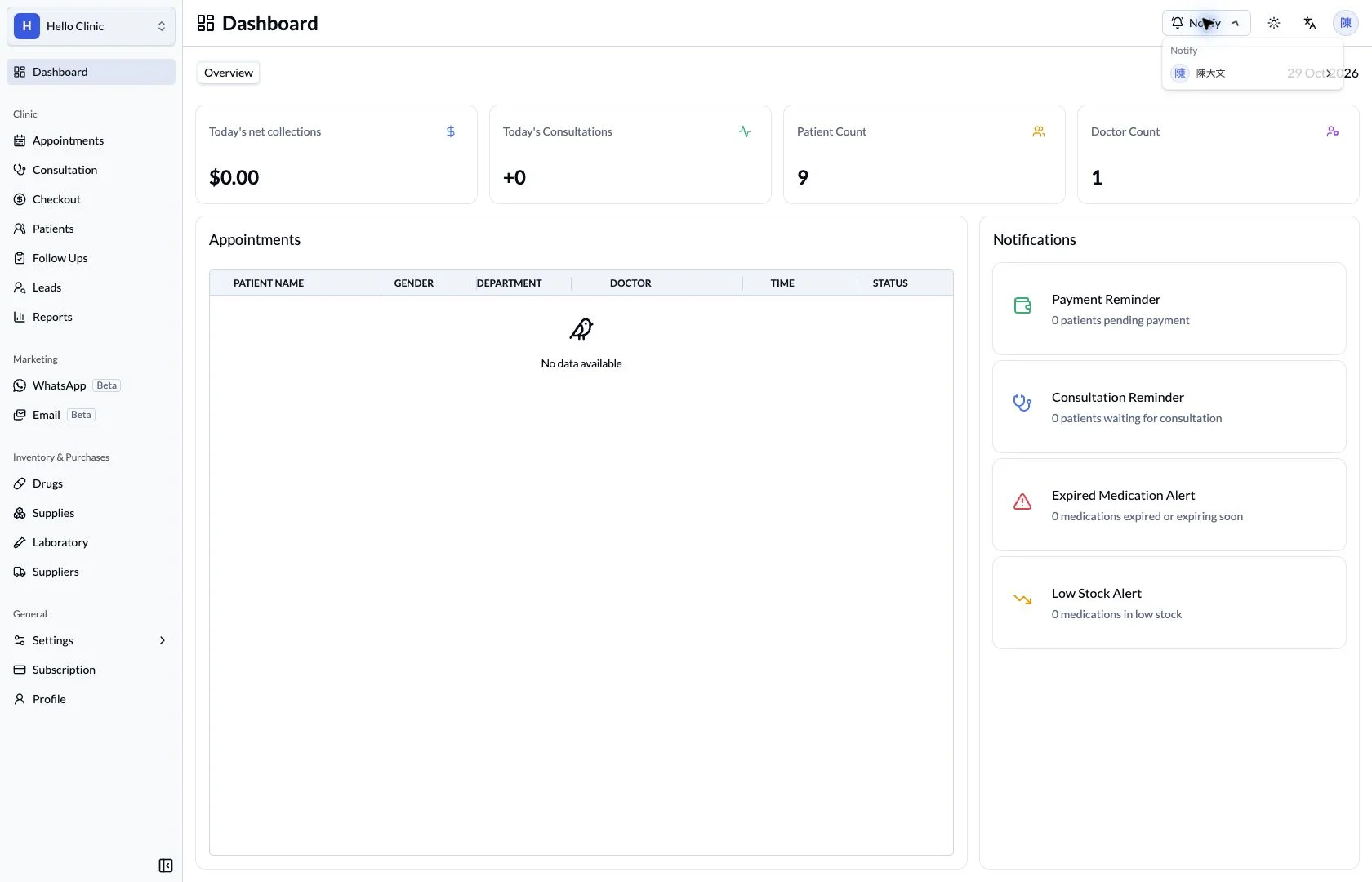
Coordinate colleagues from the working screen
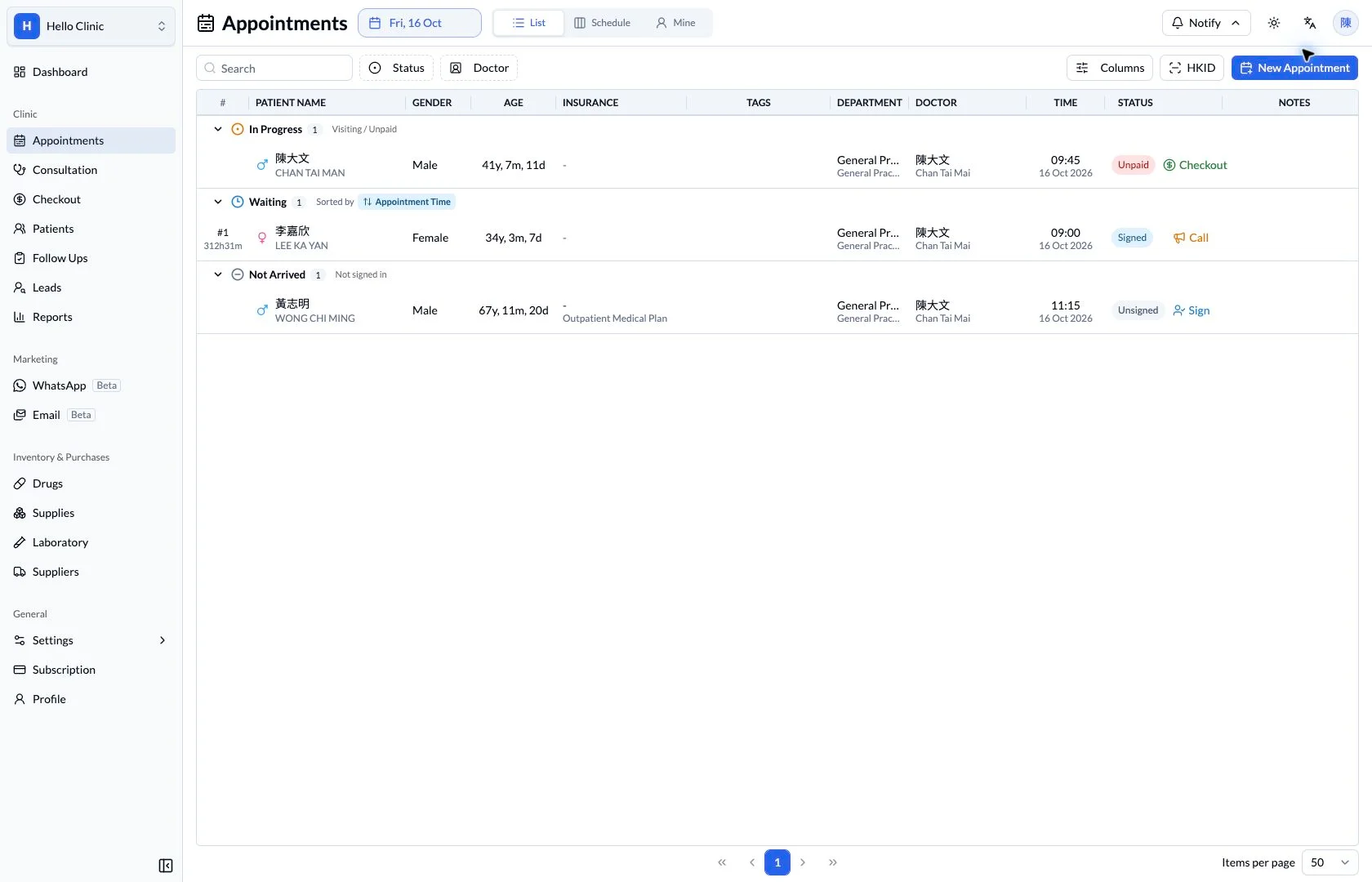
A patient may be ready to enter the room, or the clinician may need a little more time. These short handovers matter during a busy session. In-system notifications provide recipients, common messages and a custom message field beside the clinic workspace.
- Front desk and nurses
- Choose the intended colleague and explain the immediate task.
- Clinicians and receiving colleagues
- Coordinate the next step using the notification context.
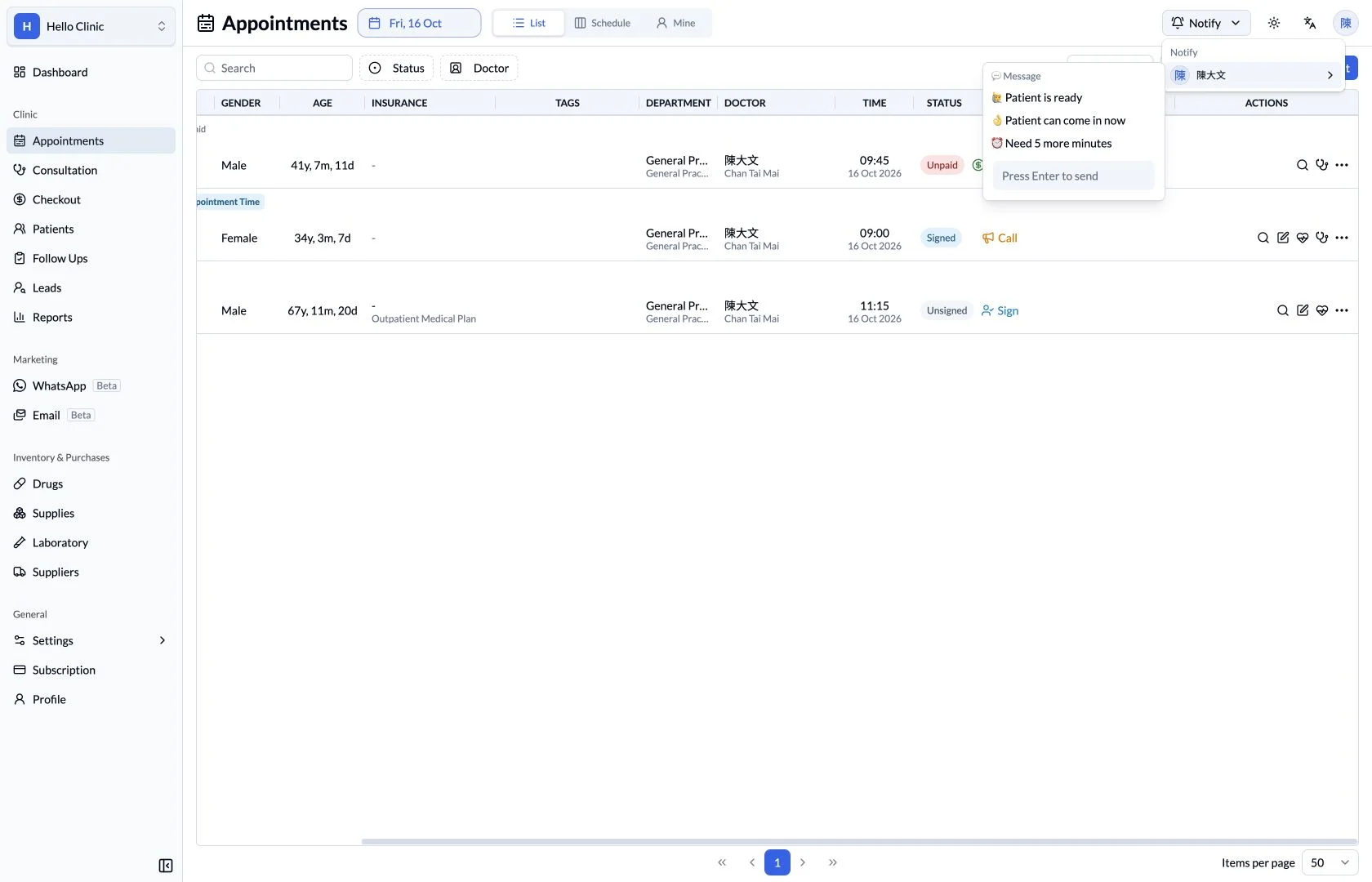
Choose a colleague and a clear preset message
The Notify menu expands common messages under a team member, including that a patient is ready, may come in, or needs to wait a few more minutes. These short messages give the front desk and consultation room a consistent way to communicate immediate status.
- Check the recipient before selecting a message.
- Use presets for short handovers and the patient record for detailed arrangements.
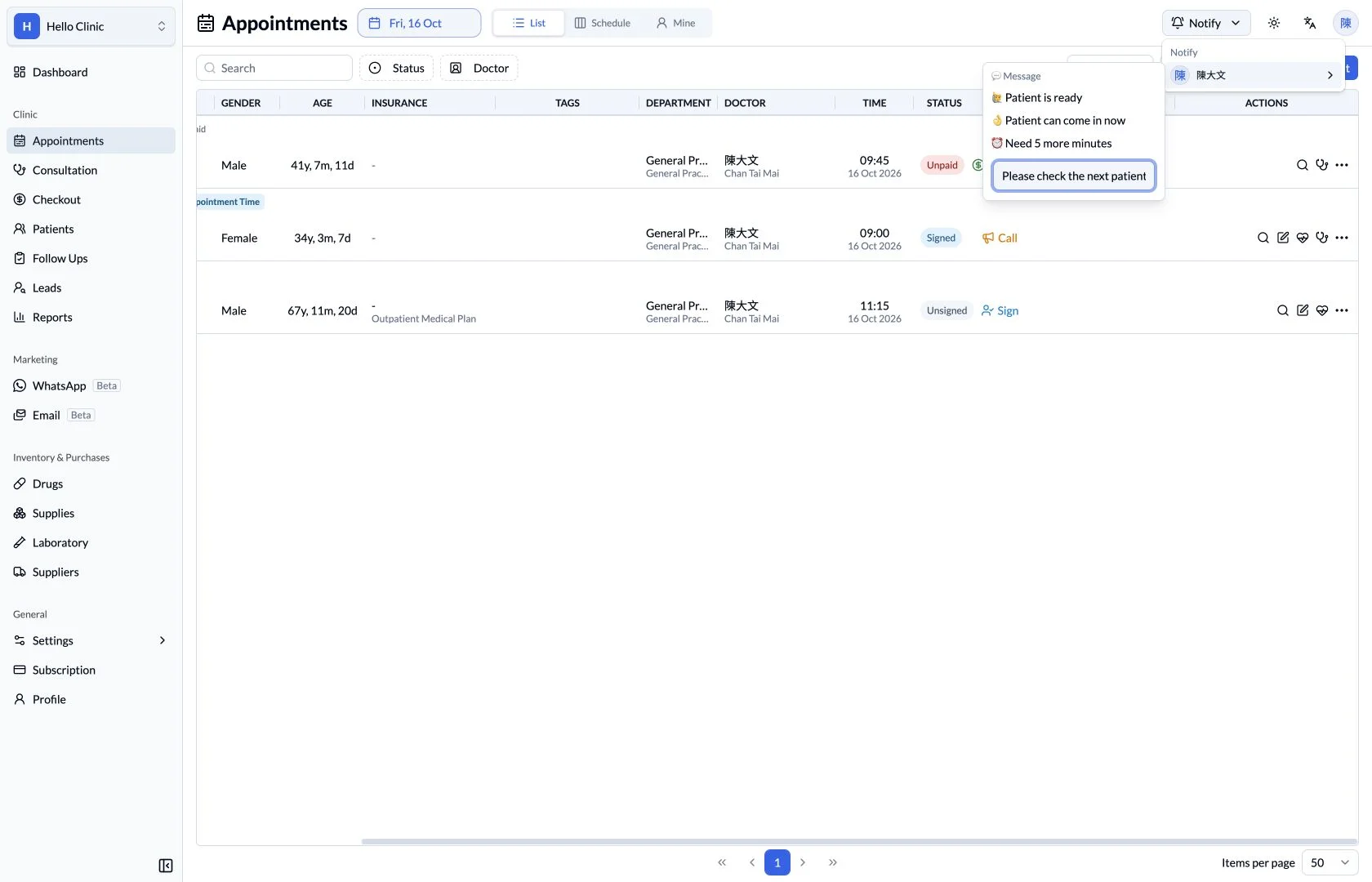
Prepare a custom message when more context is needed
When a preset is not enough, the input field lets staff prepare a more specific message. Explain what the receiving colleague needs to handle, while keeping the message focused on the information needed for that handover.
- Keep the message focused on a specific task.
- Review both the content and recipient before sending.
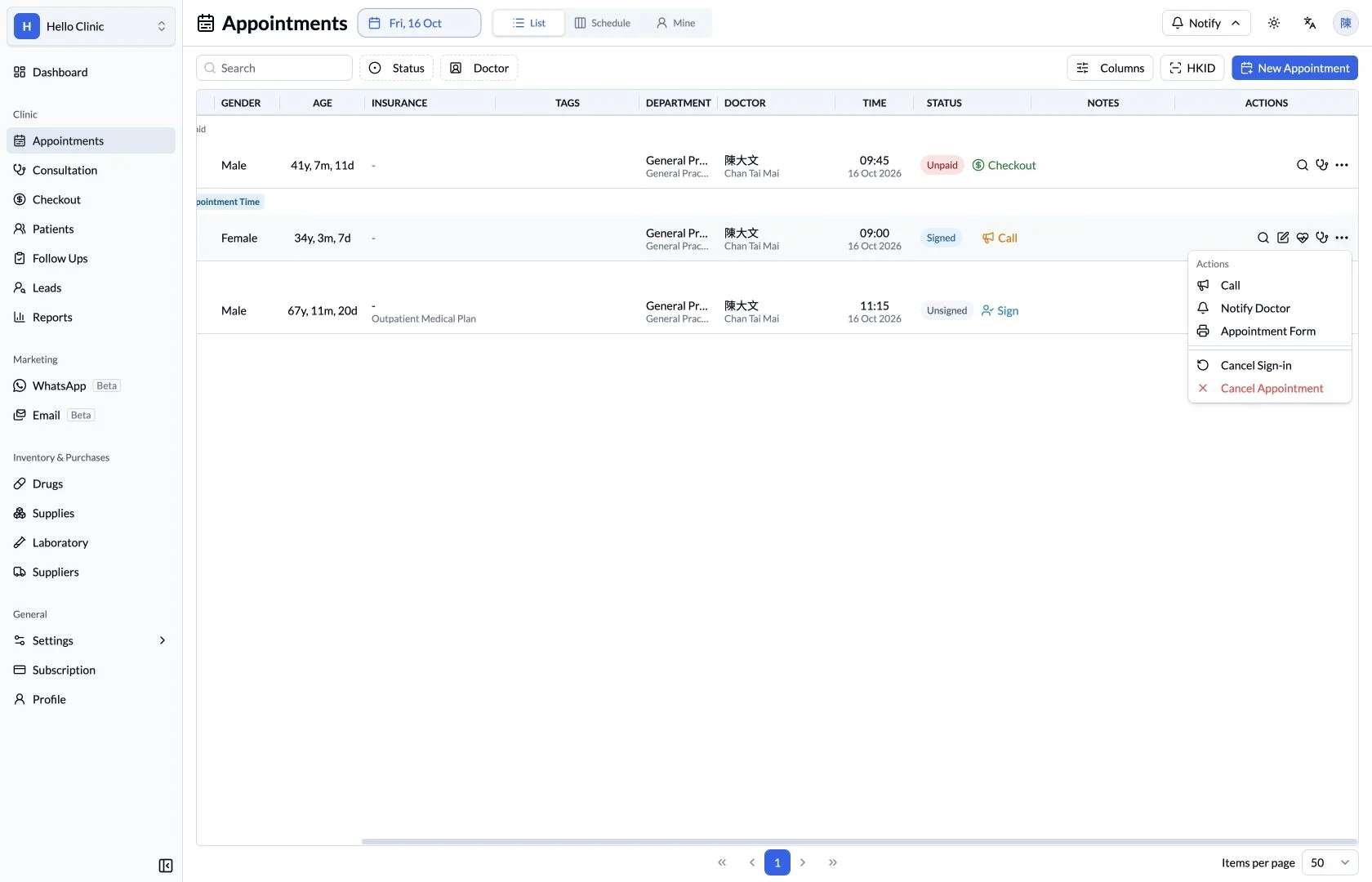
Keep notification work connected to the visit
The queue provides notification actions in the context of an individual visit. Staff can check the patient, doctor and current status before coordinating with the consultation room, keeping the handover connected to the appointment being handled.
- Use the correct visit record as the handover context.
- Keep ongoing tasks in follow-ups with an owner and date.
What this helps you do
Team recipient
Choose a team member from the notification menu.
In the workspace
Access Notify from the application’s top bar.
Operational context
Keep queue and visit information close while coordinating work.
How it fits the clinic day
Open Notify.
Choose the relevant colleague.
Check the recipient and message before sending.
Coordination at the point of work.
The notification entry point sits alongside the clinic workspace. Staff can coordinate a handover while keeping the relevant appointment or visit in view.
Keep the next handover clear
Use notifications for immediate coordination. Appointments, clinical notes and ongoing follow-ups each retain their own records. Confirm the recipient before sending, and keep work that needs continuing follow-up in the appropriate patient workflow.