
Queue Management
Know who is waiting, and what comes next.
Organise the front desk queue around visit status. Keep patients waiting for consultation visible alongside visits already in progress.
Appointments & front desk
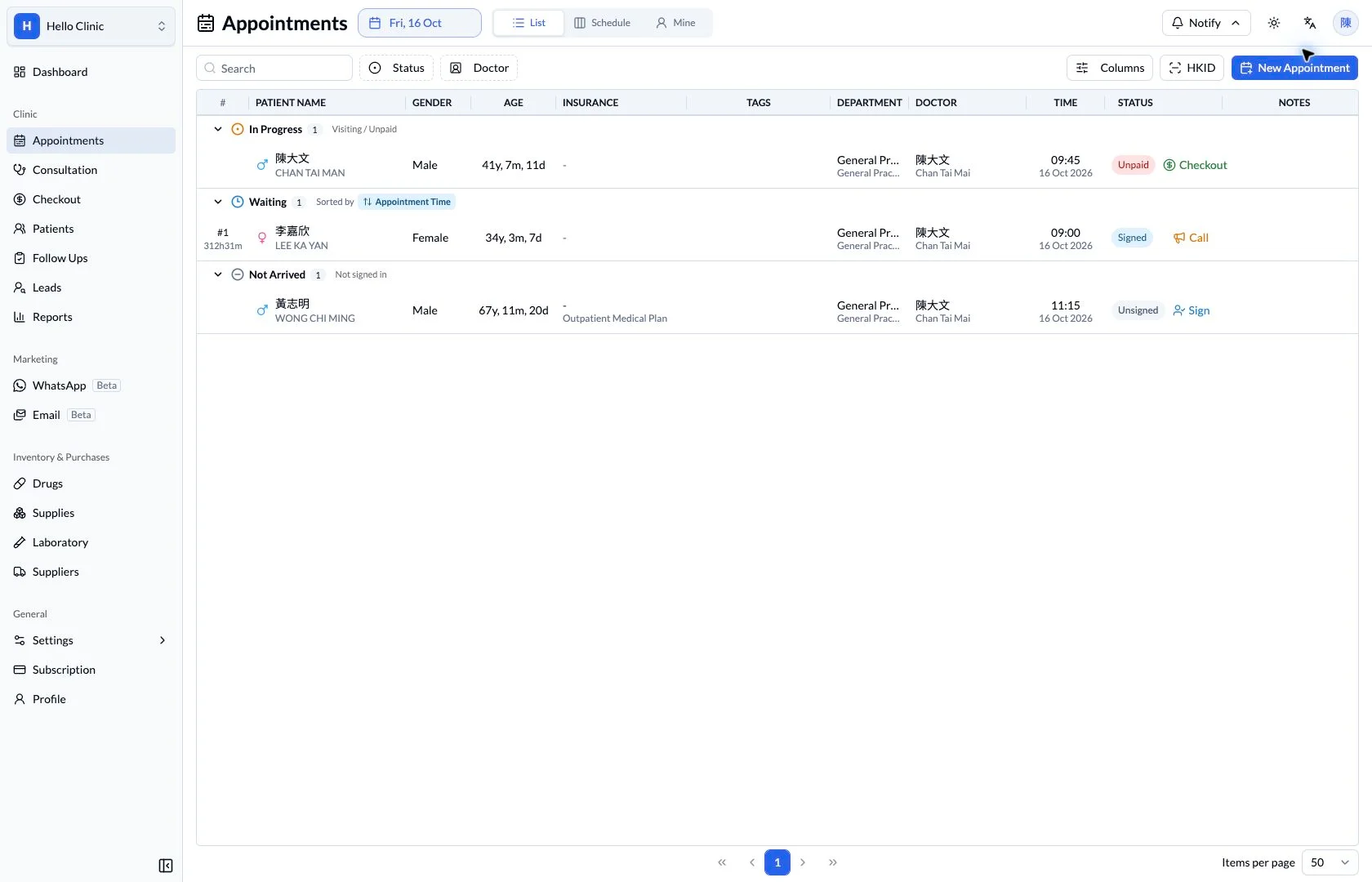
Coordinate the next patient during a busy session
As a session gets busy, some patients are arriving, others are waiting and some have already moved on to checkout. The queue brings these stages into one working list so front desk staff and nurses can understand the current situation before coordinating the next handover.
- Front desk
- Coordinate arrivals, find the patient and review visit status.
- Nurses and doctors
- Prepare the next consultation using the current visit context.
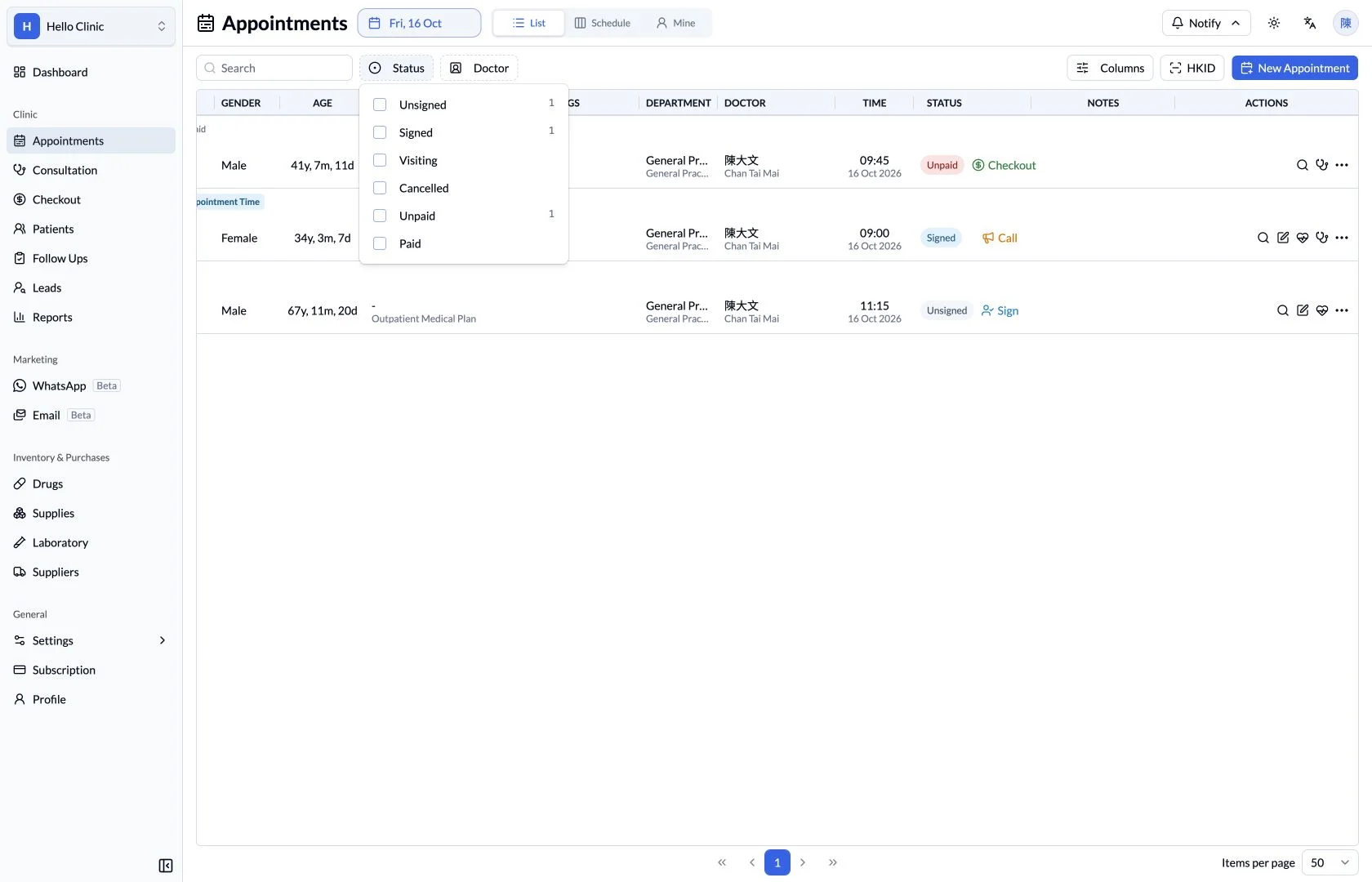
Filter the list to the work that needs attention
The daily list contains several visit states. Open the status filter to focus on arrivals, signed-in patients, consultations or payment progress. Filtering helps the front desk concentrate on the part of the workflow they are handling during a busy session.
- Review the date and doctor scope alongside status.
- Check which filters remain active when changing tasks.
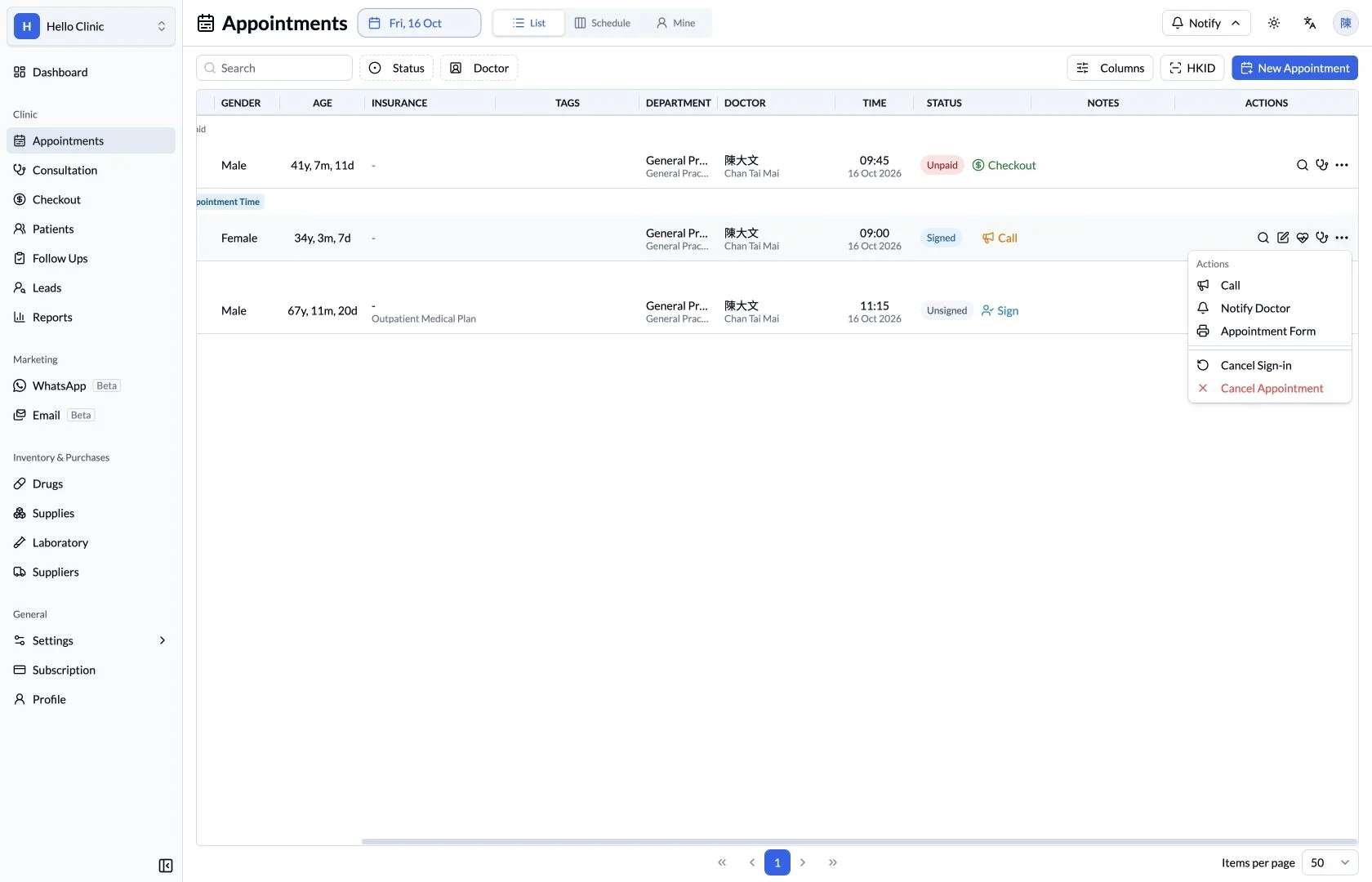
Act from the correct patient’s visit
The visit menu groups actions such as calling, notifying the doctor and opening the appointment form. Working beside the patient record keeps the intended patient and handover context visible when staff coordinate the next step.
- Confirm the selected patient before calling or notifying a colleague.
- Open the appointment form from the same visit when checking arrangements.
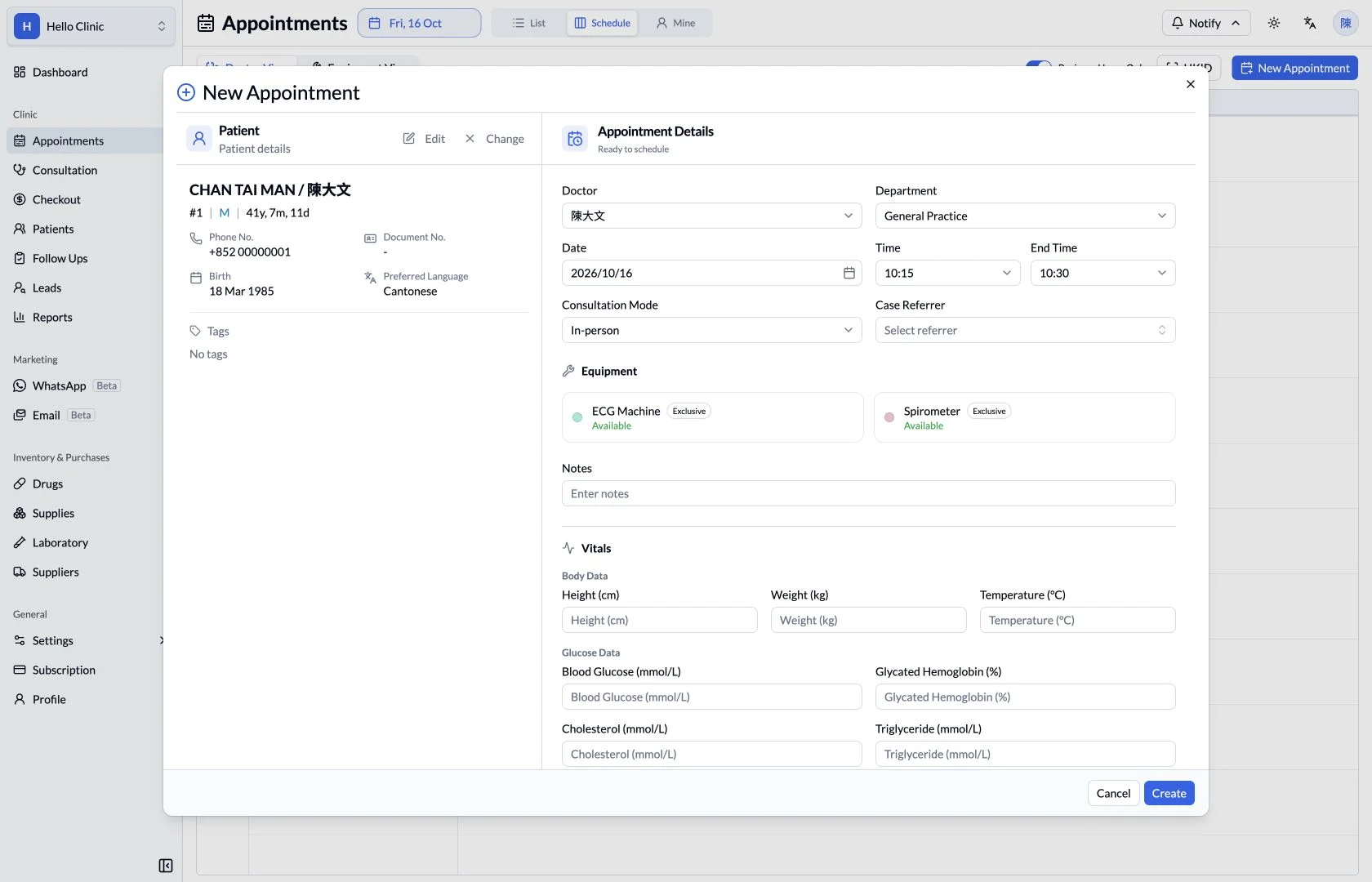
Keep the original booking context in the handover
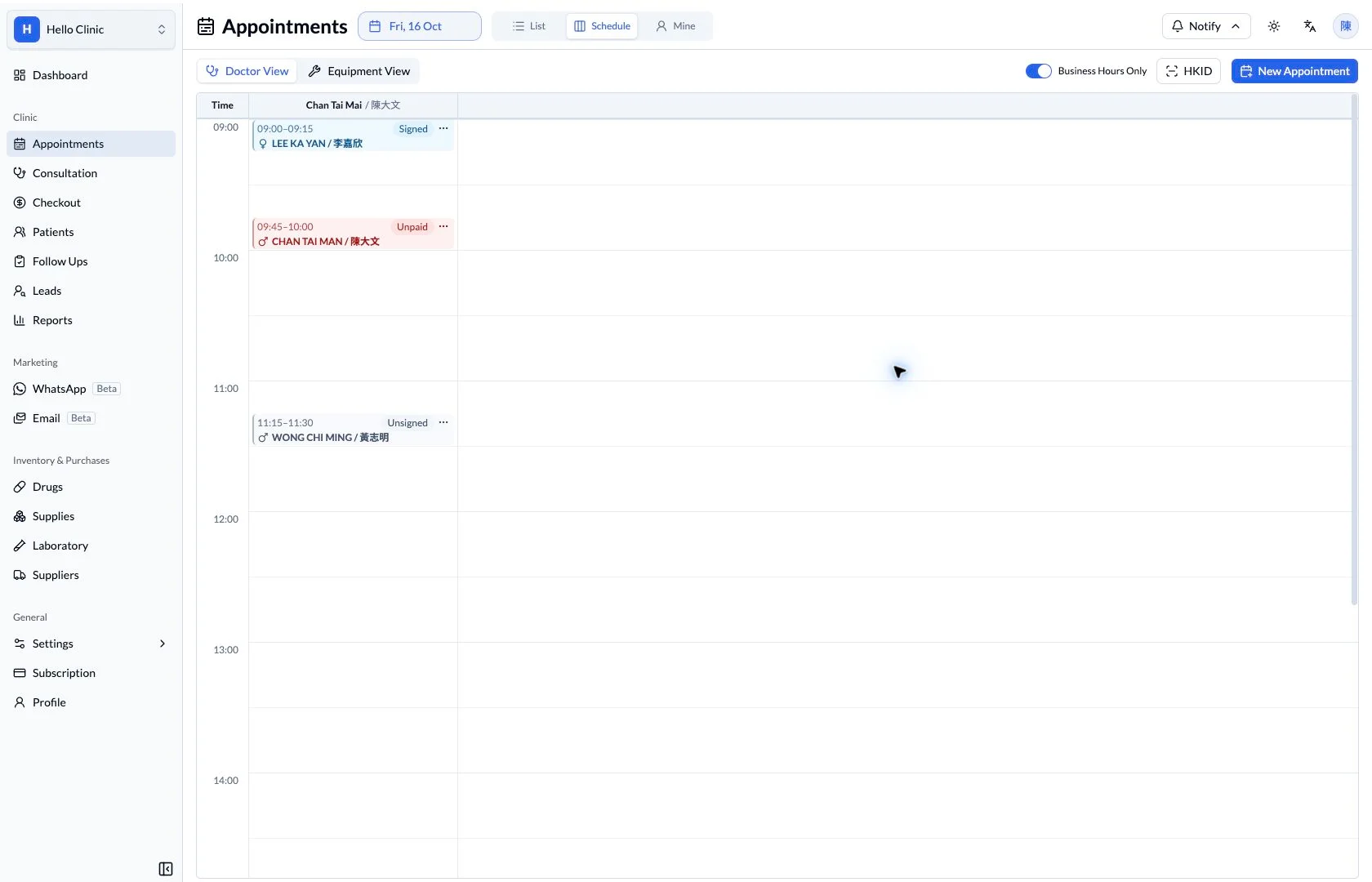
Queue status explains progress, while the appointment details provide the clinician, department, time slot and notes. Return to this record when a patient asks about their arrangements or another colleague needs to take over the visit.
- Use the booking record as the shared reference during handover.
- Review the clinician and resource arrangements before making changes.
How it fits the clinic day
Review the arrival list.
Identify the next waiting patient.
Coordinate consultation and checkout.
What this helps you do
- Not arrived
- Identify bookings that have not yet been signed in.
- Waiting
- Review the waiting list and appointment-time ordering.
- In progress
- See visits being handled and their payment status.
One queue, shared context.
Patient, doctor, appointment time and status appear together. The same list gives front desk staff the context to coordinate the next handover.
Keep the next handover clear
Use the queue alongside what is happening in the consultation rooms. The front desk coordinates arrivals and calling, clinicians continue the visit, and checkout staff can refer to the doctor, department and payment context retained in the same list.