
This Product Update focuses on medication safety, traceable payment records, and a faster day-to-day consultation workflow. Doctors can review a complete medication summary on the first printed label, clinics can correct payment details without losing the audit trail, and new shortcuts reduce repetitive prescribing and consultation work.
1. Edit payment times with History, Edit, Revert, and a complete audit trail
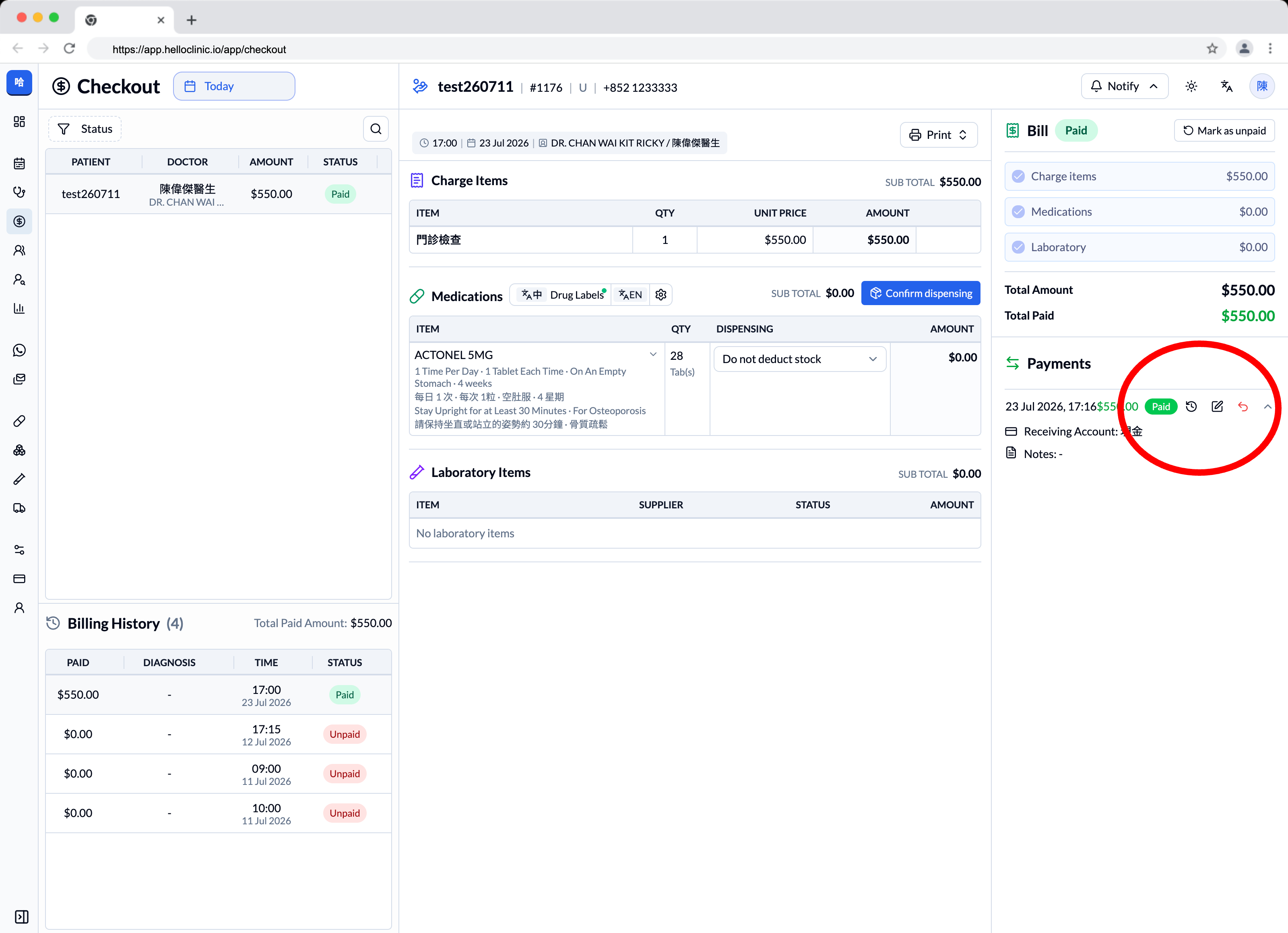
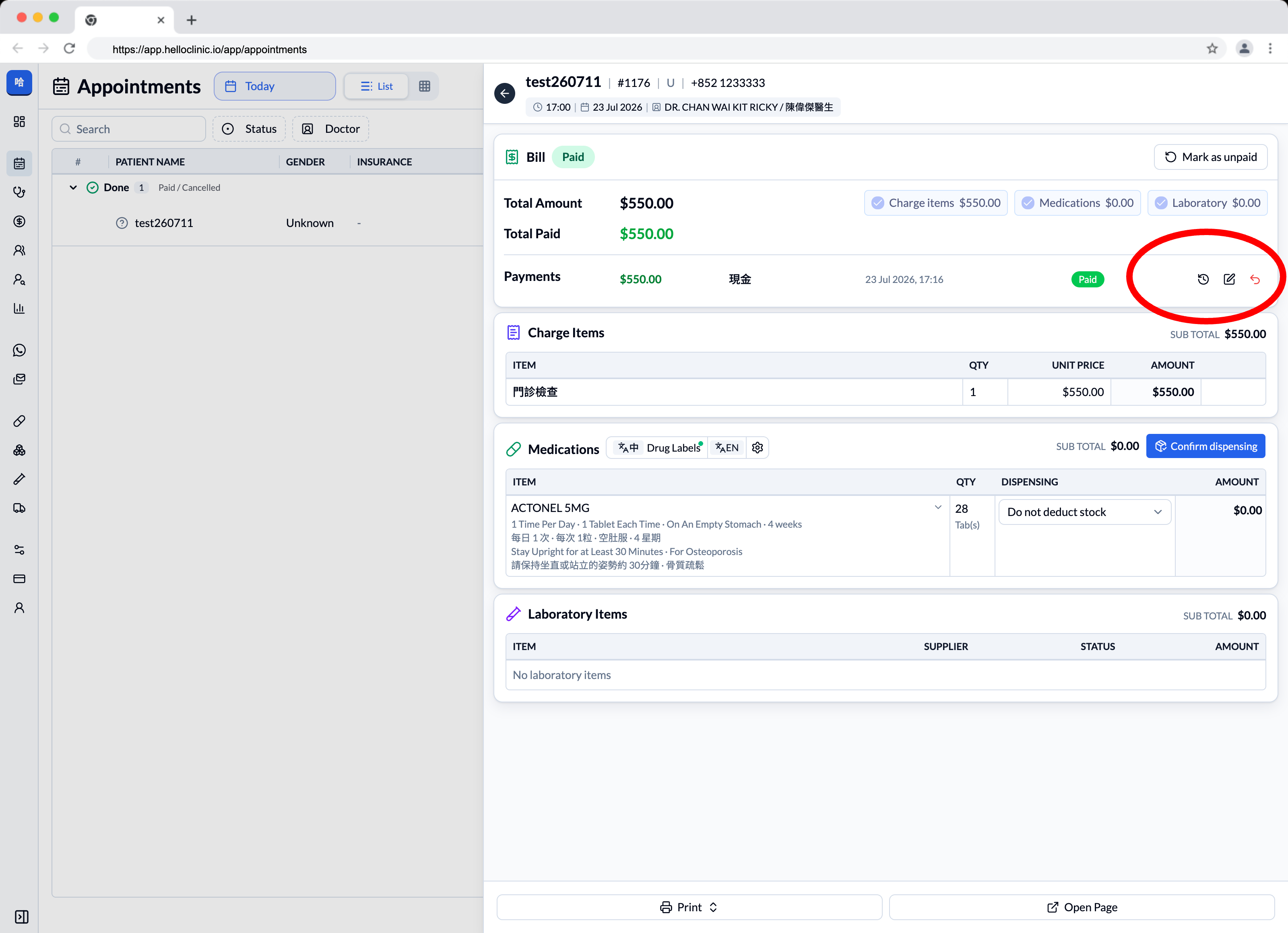
You can now set the actual time for each payment during checkout. If a record needs to be corrected later, use the actions on the right of the payment:
- History: Review when the payment was created, edited, or reverted, together with the recorded changes.
- Edit: Correct the amount, receiving account, payment time, or note.
- Revert: Enter a reason to reverse the payment and, when needed, mark the bill as unpaid.
Please proceed carefully: every creation, edit, and revert remains in the payment History, including the operator, time, and before-and-after details. Payment creation, changes to the amount, receiving account or payment time, and reverts are also added to the patient Timeline. There is no interface action for altering or deleting this audit history. Revert is not the same as deletion; the original record and the reason for reverting remain traceable.
2. Summary Label: review all medications on the first label
A new settings button now appears beside the Chinese and English drug-label print buttons. Open Drug Label Settings and enable Include Summary Label to add a Summary Label as the first label in every print job.
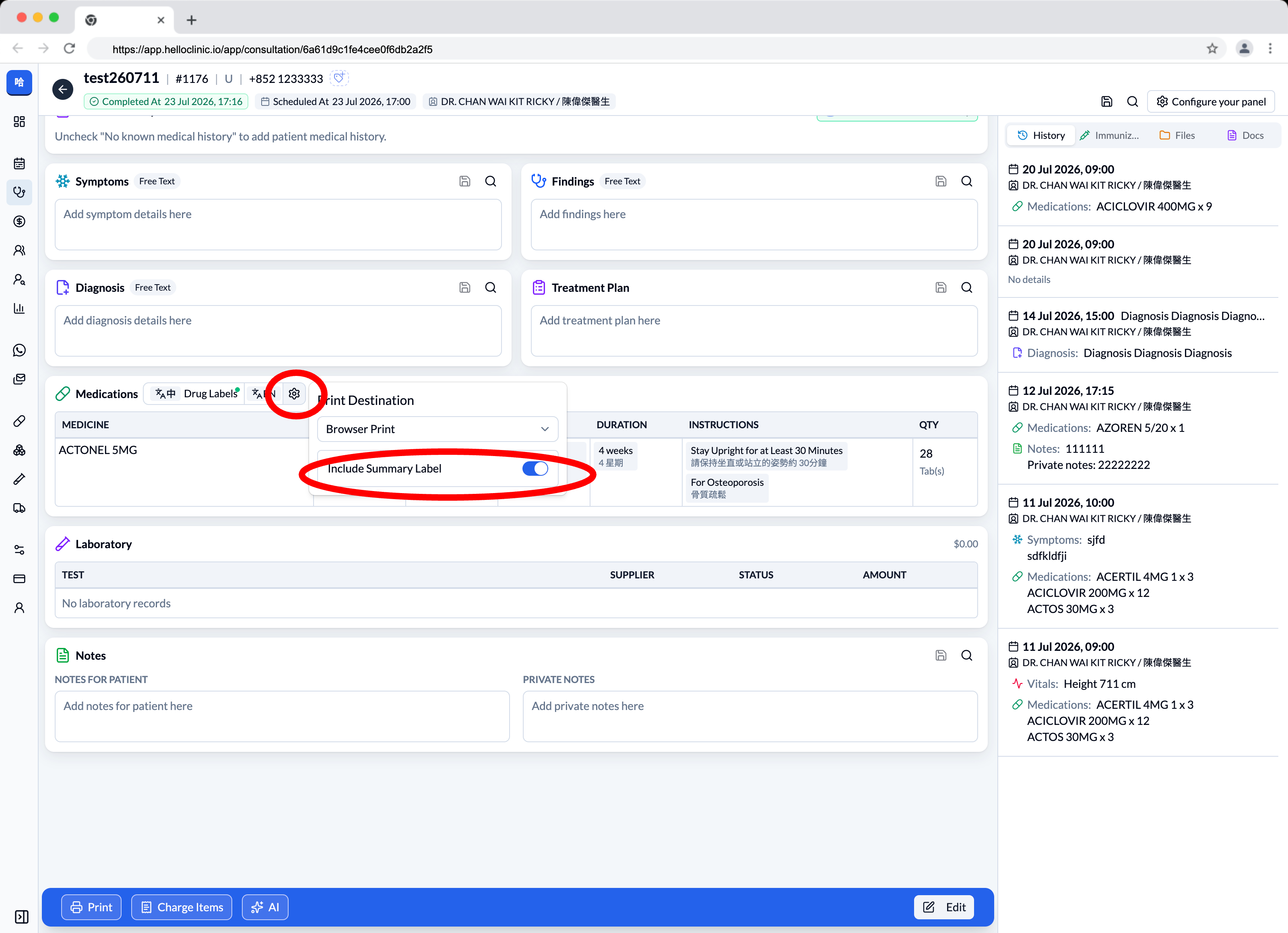
The Summary Label brings together the patient’s English and Chinese names, patient number, print time, and the medications and total quantities in the current prescription. Doctors can review the whole prescription before checking each individual drug label.
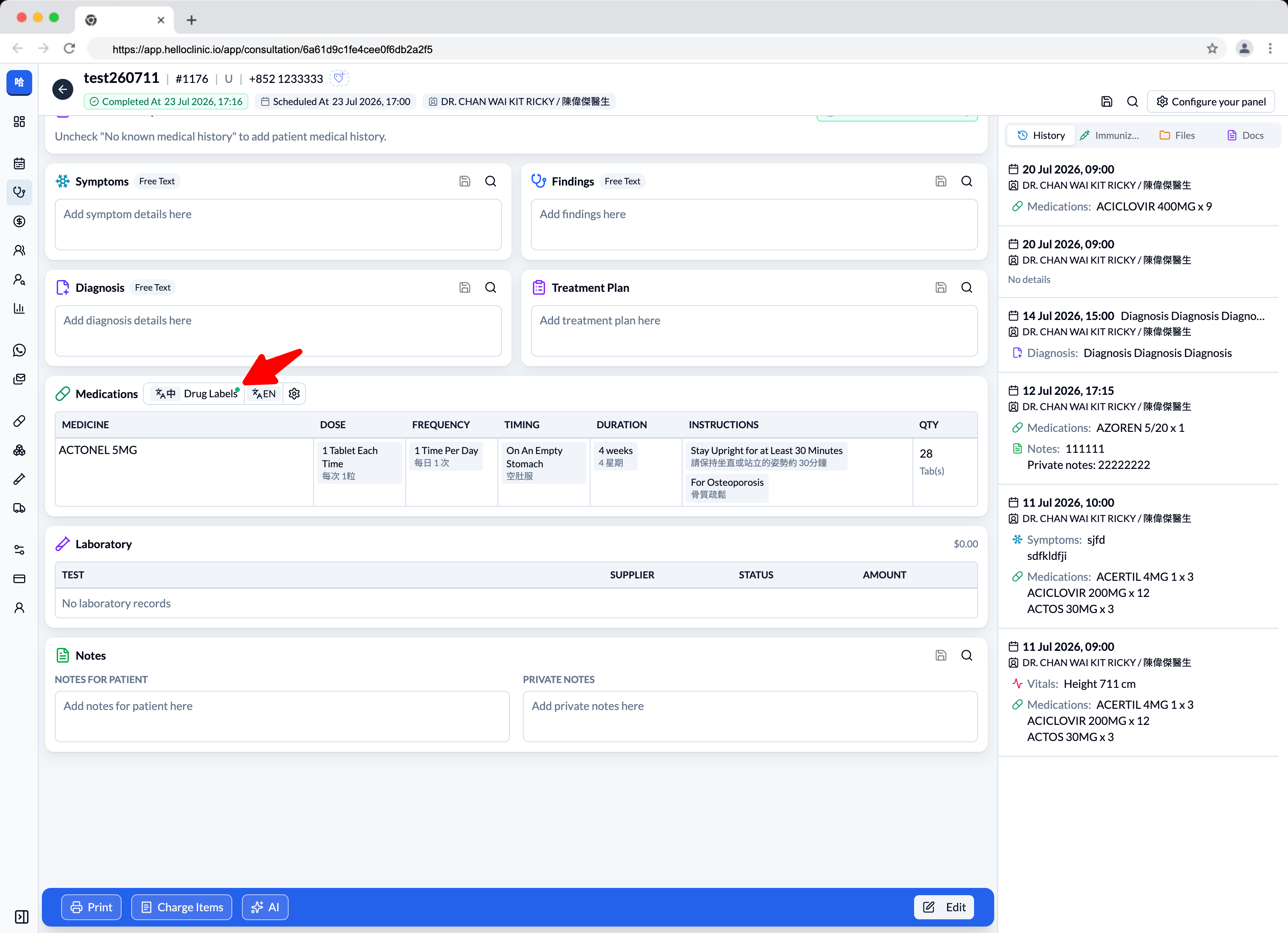
3. A green dot recommends the patient’s preferred label language
HelloClinic now uses the preferred language in the patient profile to place a green dot on the recommended Chinese or English drug-label print button. The reminder appears across Consultation, Checkout, and other drug-label printing locations, helping clinic staff choose the appropriate language before printing. It is a visual recommendation only and neither switches the language automatically nor prevents printing the other language.
4. Create reusable medication directions inside the prescription menu
The following fields in the Consultation Medications table now let you create a new menu option directly:
- Dose
- Frequency
- Timing
- Duration
- Instructions
Enter a new direction in the relevant field and select the create action. It is saved to the corresponding menu for reuse in future prescriptions, without leaving Consultation to configure it elsewhere.
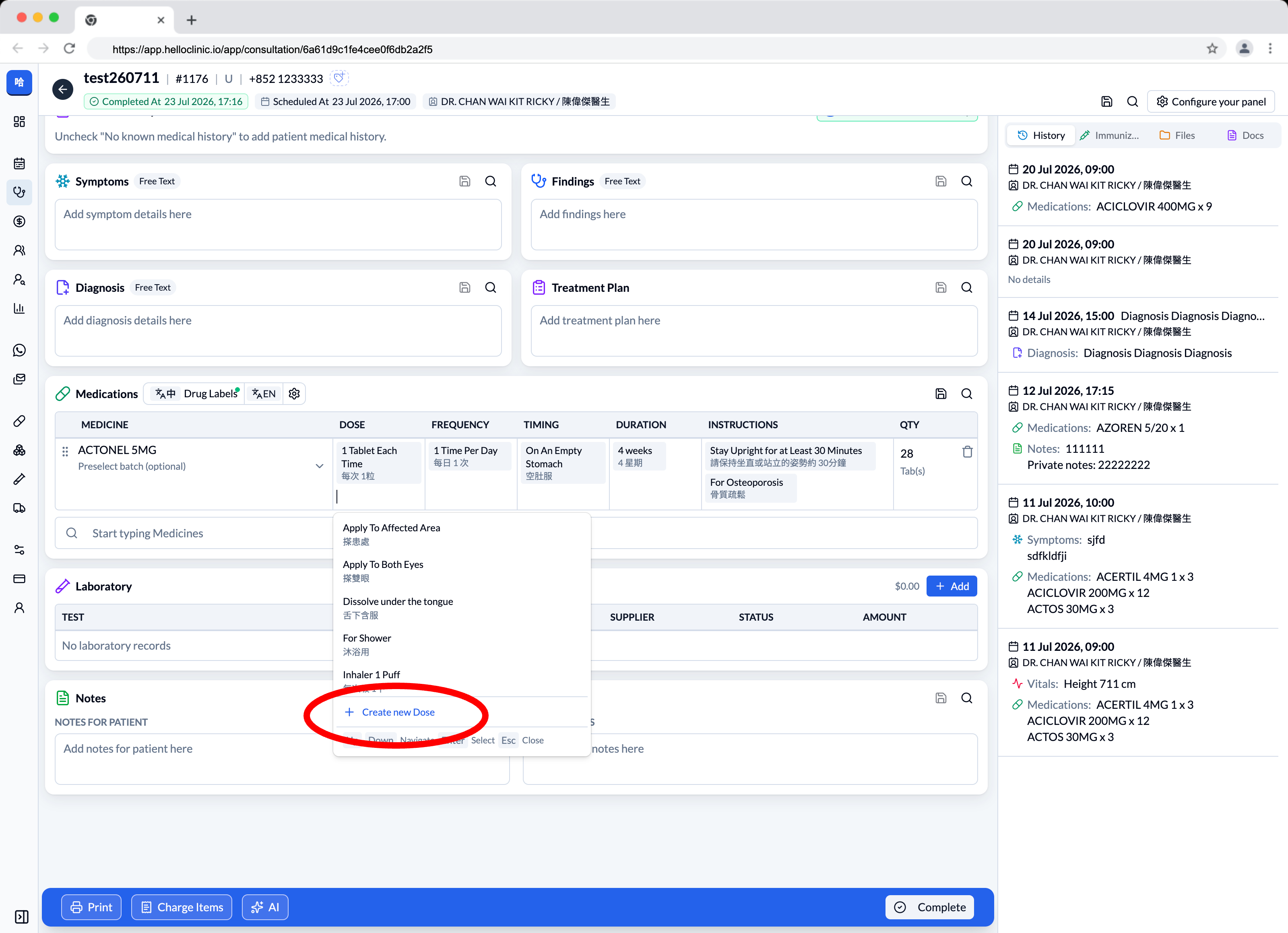
Please note: this feature only creates a reusable direction option. It does not change the default label for an individual drug. To change the label content that a drug uses by default, continue to use Edit drug.
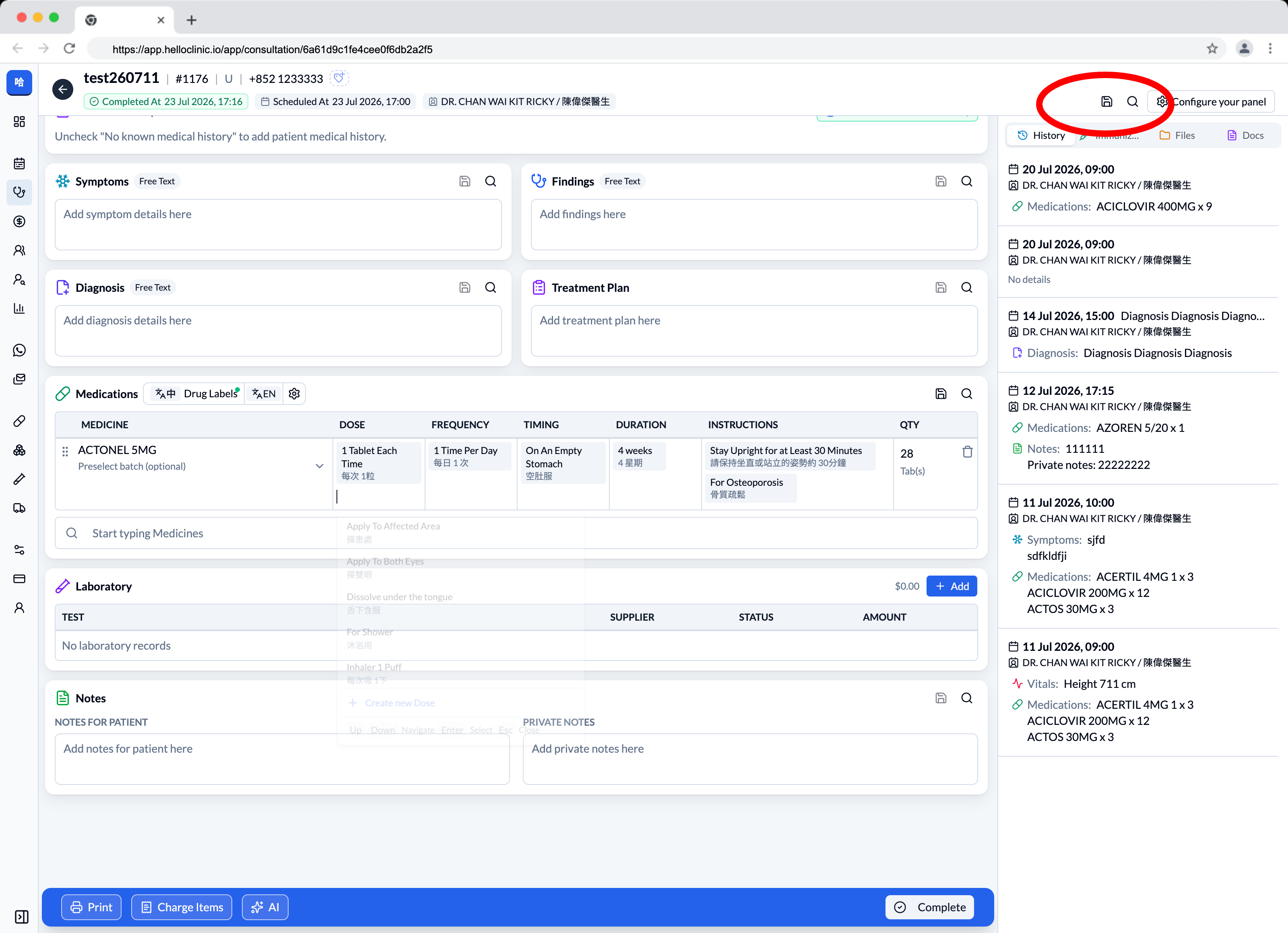
5. Save multiple Consultation sections as one template
New template actions are available in the upper-right corner of Consultation. Doctors can select and combine frequently used sections—including Symptoms, Findings, Diagnosis, Treatment Plan, Procedures, Medications, and Notes—and save them as one Consultation template.
For a similar case, search for and apply the multi-section template instead of finding and entering each section separately. Existing templates can also be updated as workflows evolve.
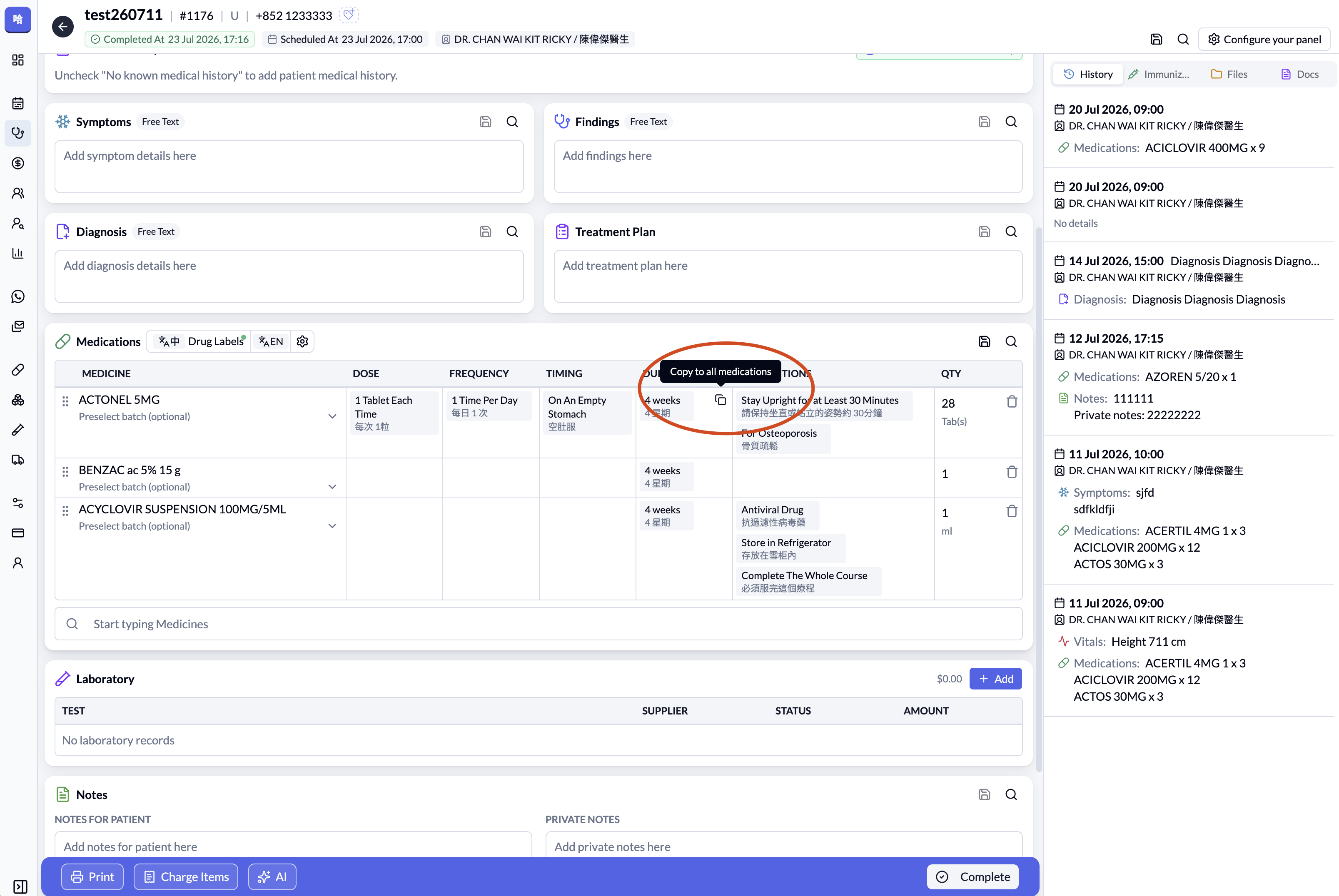
6. Copy to all medications: apply the same direction across medication rows
Hover over a completed Frequency, Timing, or Duration cell in the Medications table to find Copy to all medications. Select it to apply that field to the other editable, undispensed medication rows. Copying Frequency or Duration also recalculates the relevant medication quantities.
7. Sort the waiting queue by waiting time or appointment time
The Consultation waiting queue now includes a sort control for switching between:
- Waiting Time: Place patients who have been waiting longer first.
- Appointment Time: Follow the original scheduled order.
HelloClinic remembers the selected sorting mode, so the team can keep using the order that suits the clinic’s daily workflow.
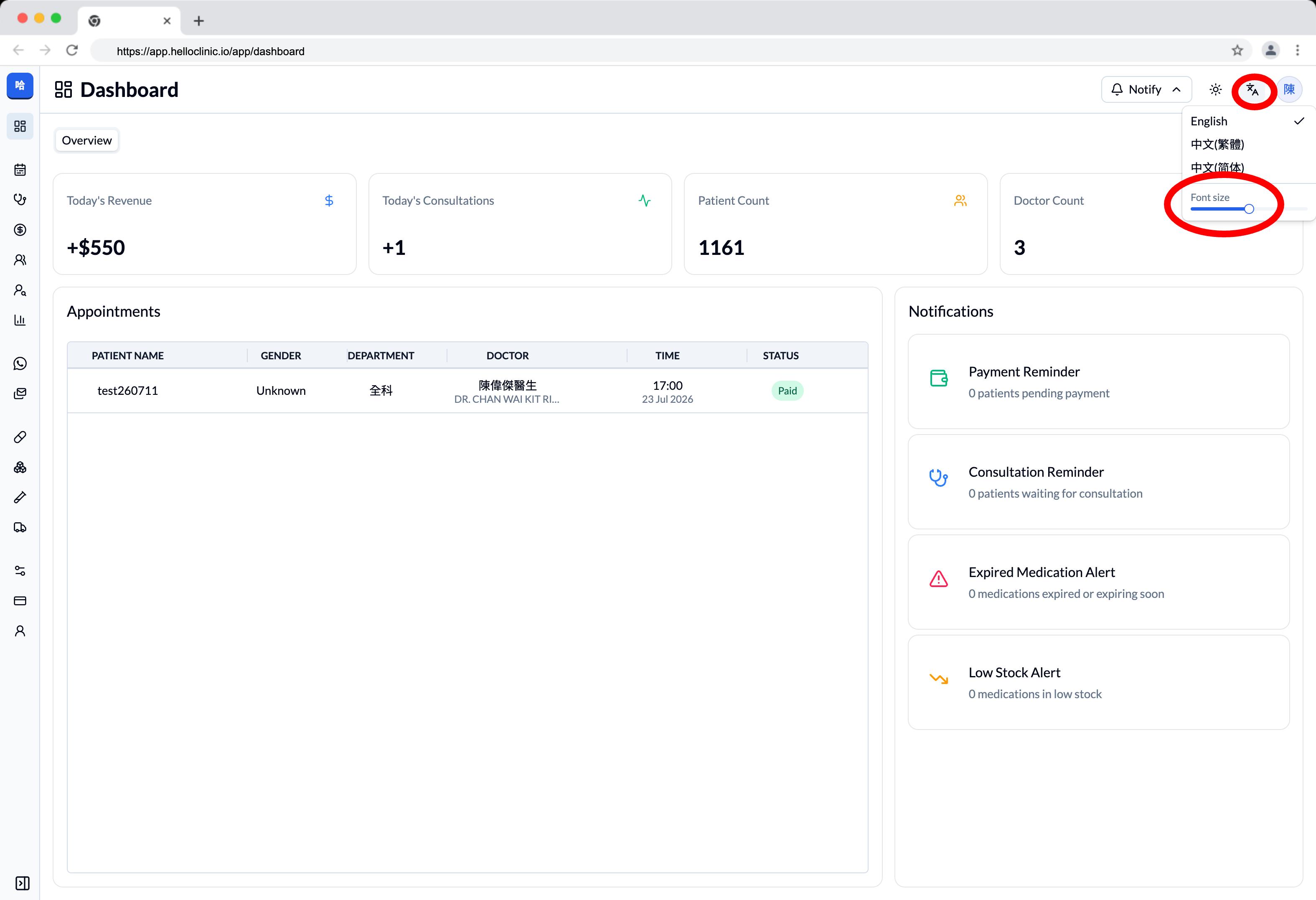
8. Adjust font size and overall interface scale
The language menu in the upper-right corner now includes a Font size slider. Changing the font size also scales the interface, making HelloClinic easier to read across different screens. The preference is saved for each user and restored on the next visit.
More improvements throughout HelloClinic
These are the main highlights of the 2026-07-23 update. This release also includes many additional interface, printing, and workflow improvements that are not individually listed here. Thank you for your continued support and feedback.
For questions about these features or to share a suggestion, contact us on WhatsApp at (852) 3500 7677.
The HelloClinic Team / KAKI TECH LIMITED