
Document & Report Management
Keep patient files with the patient record.
Use the patient’s Files area to organise uploaded material and access the documents that support ongoing care.
Patient records & documents
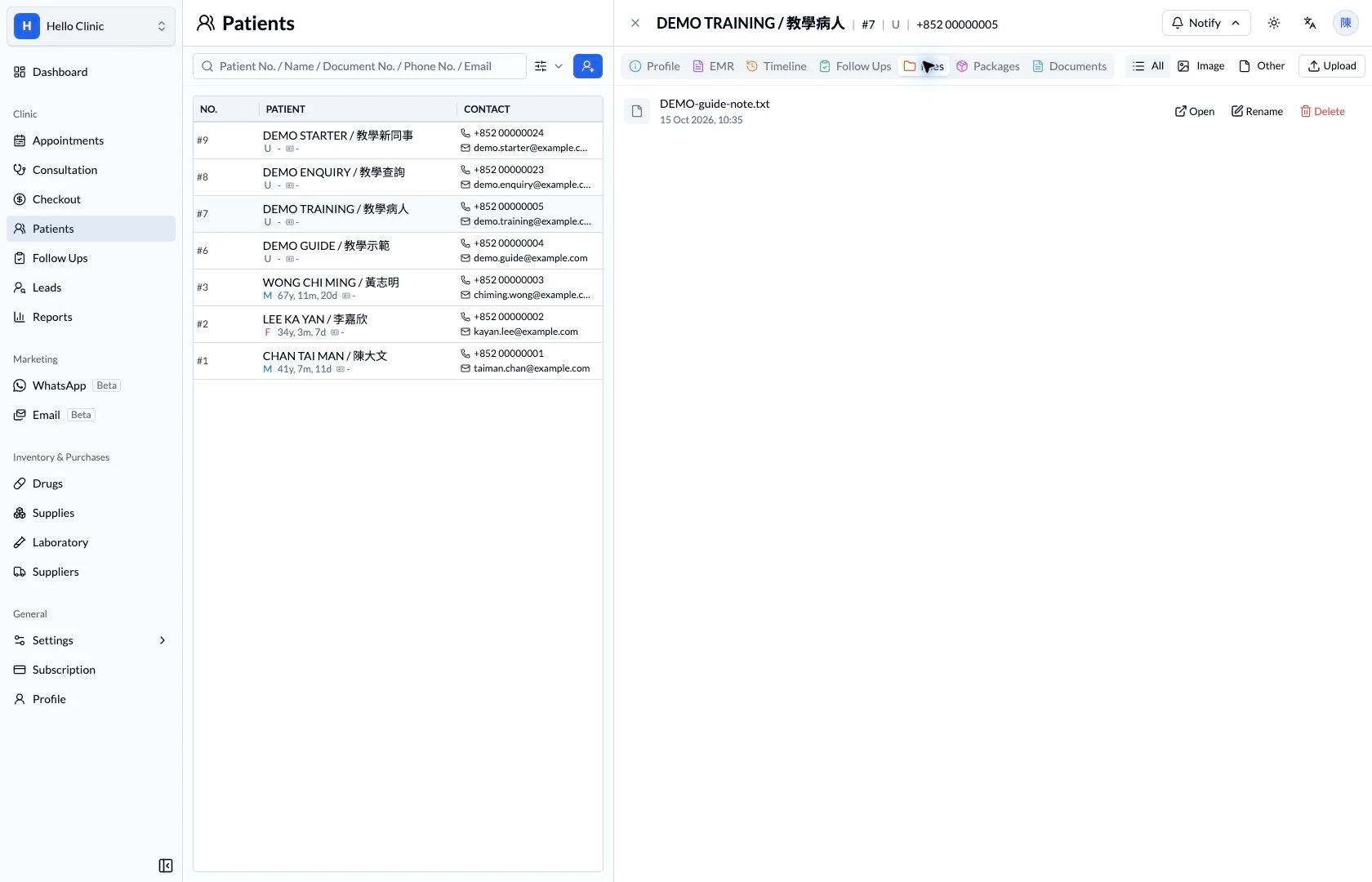
Keep patient documents easy to find when needed
Clinics receive reports, store reference files and prepare patient documents every day. Clear file naming, accessible investigation details and reviewable document drafts help the next colleague find the right material.
- Clinic assistant
- Organise patient files and incoming material.
- Clinical staff
- Review reports and documents before issue.
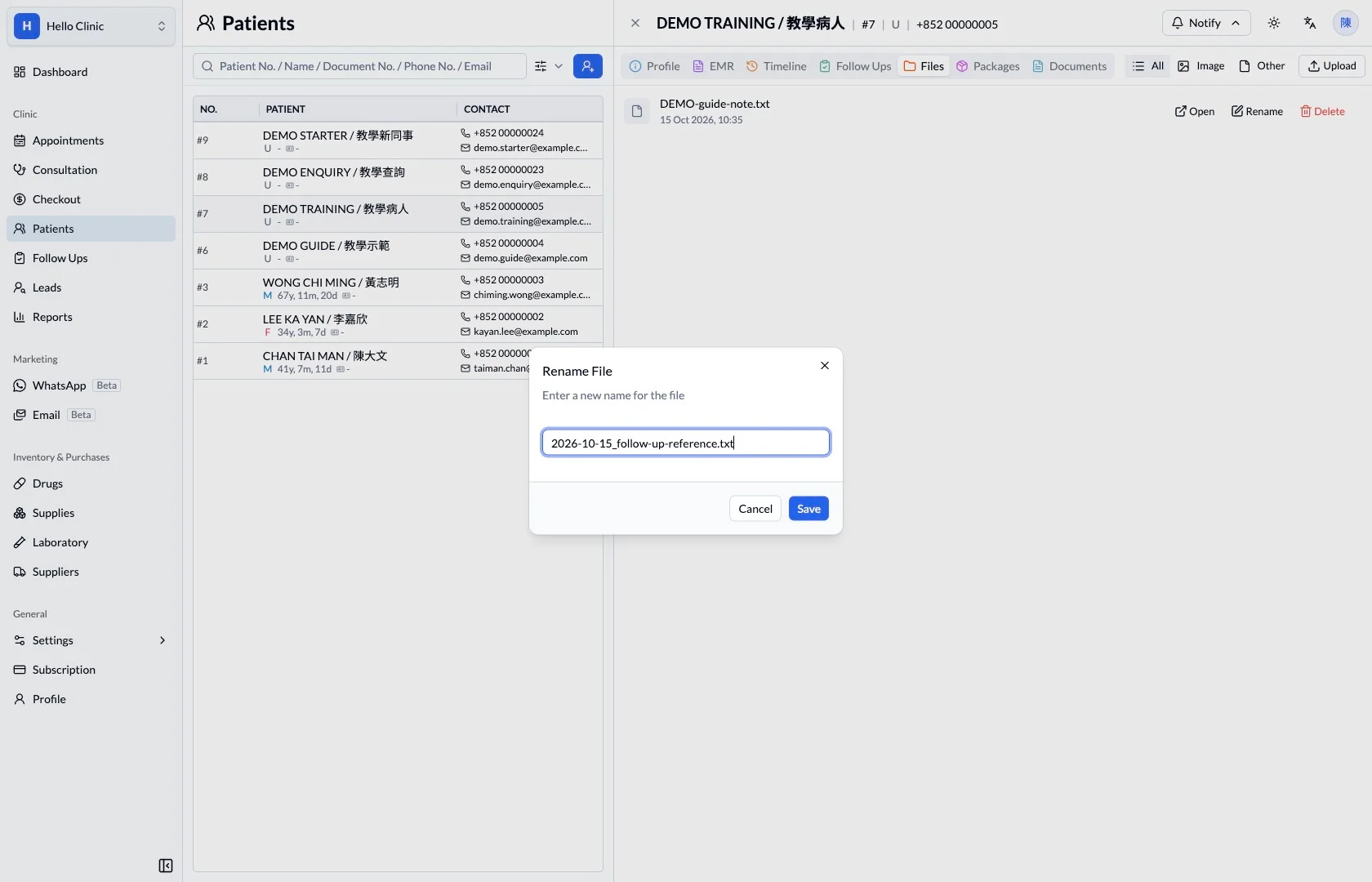
Give stored files a useful name
A descriptive file name can combine a date with its purpose, such as follow-up reference material. Colleagues can then understand what a file is for before opening a series of ambiguously named attachments.
- Use the clinic’s convention for date and purpose.
- Verify the selected file before saving a name change.
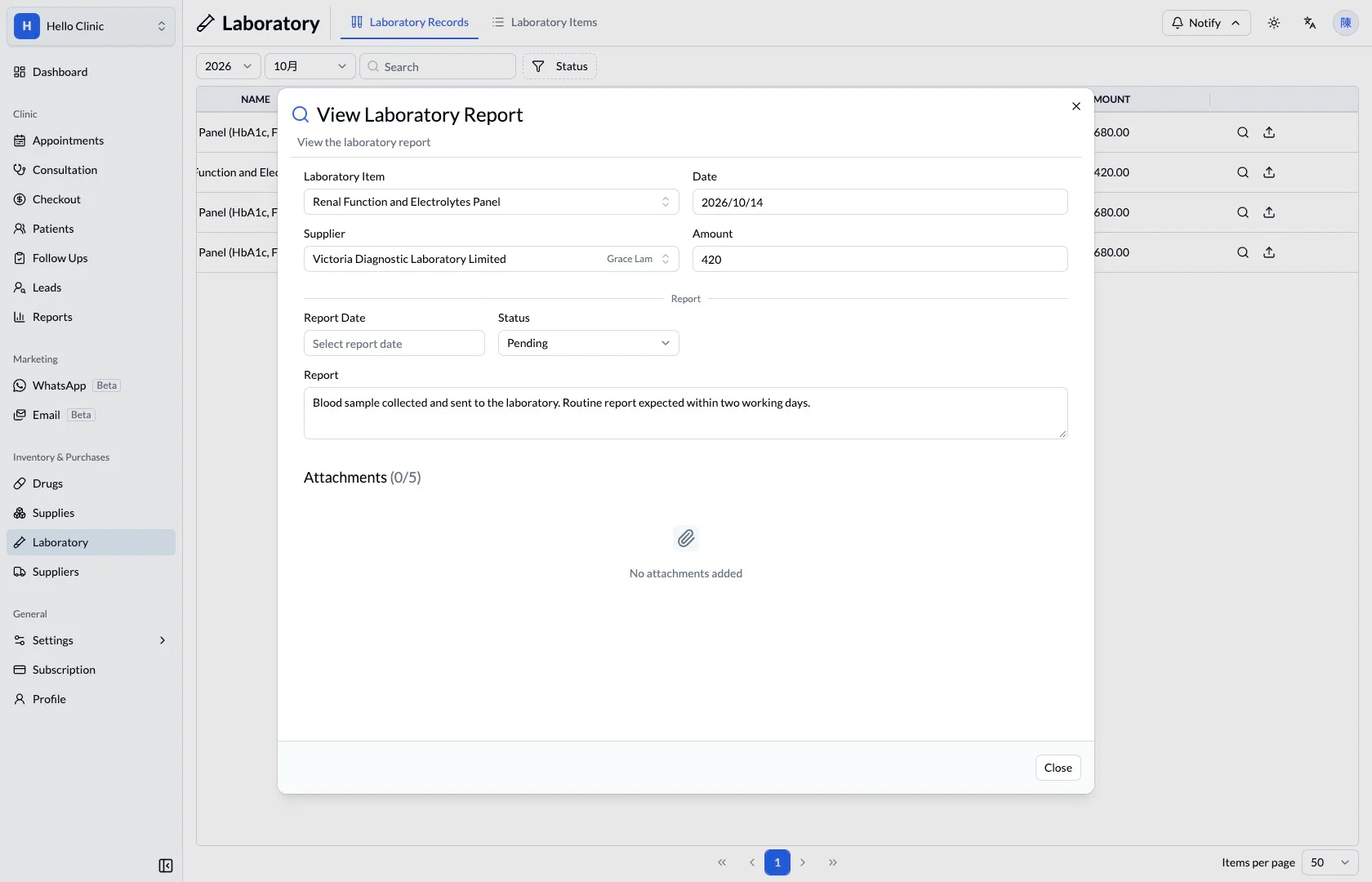
Keep investigation context beside the report
Investigation details keep the test, notes and attachments in one place. Staff first verify the patient and requested test, then check whether the received material is complete enough for the responsible clinician to review.
- Confirm the patient and investigation.
- Identify missing results or supporting attachments.
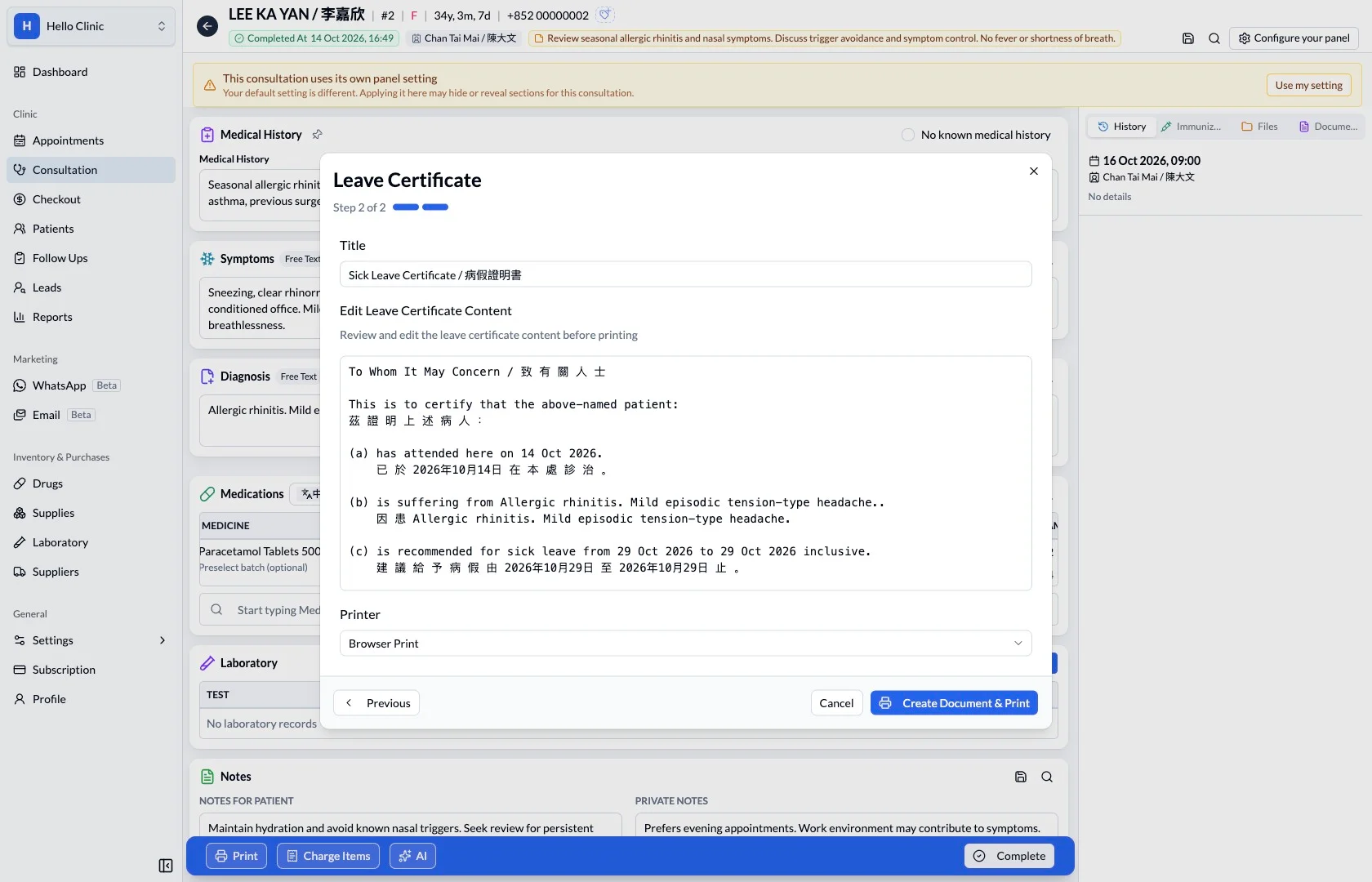
Review the complete draft before issue
When preparing a certificate, review the generated text as a draft first. Clinical staff verify the patient, dates and wording before deciding to create the document, making content review part of the routine workflow.
- Check the name, dates and certificate wording.
- Continue to creation and printing only after review.
What this helps you do
- Patient files
- Open uploaded files from the patient workspace.
- File filters
- Switch between all files, images and other material.
- Clear identification
- Review filenames and upload dates when selecting the right file.
Supporting material stays close.
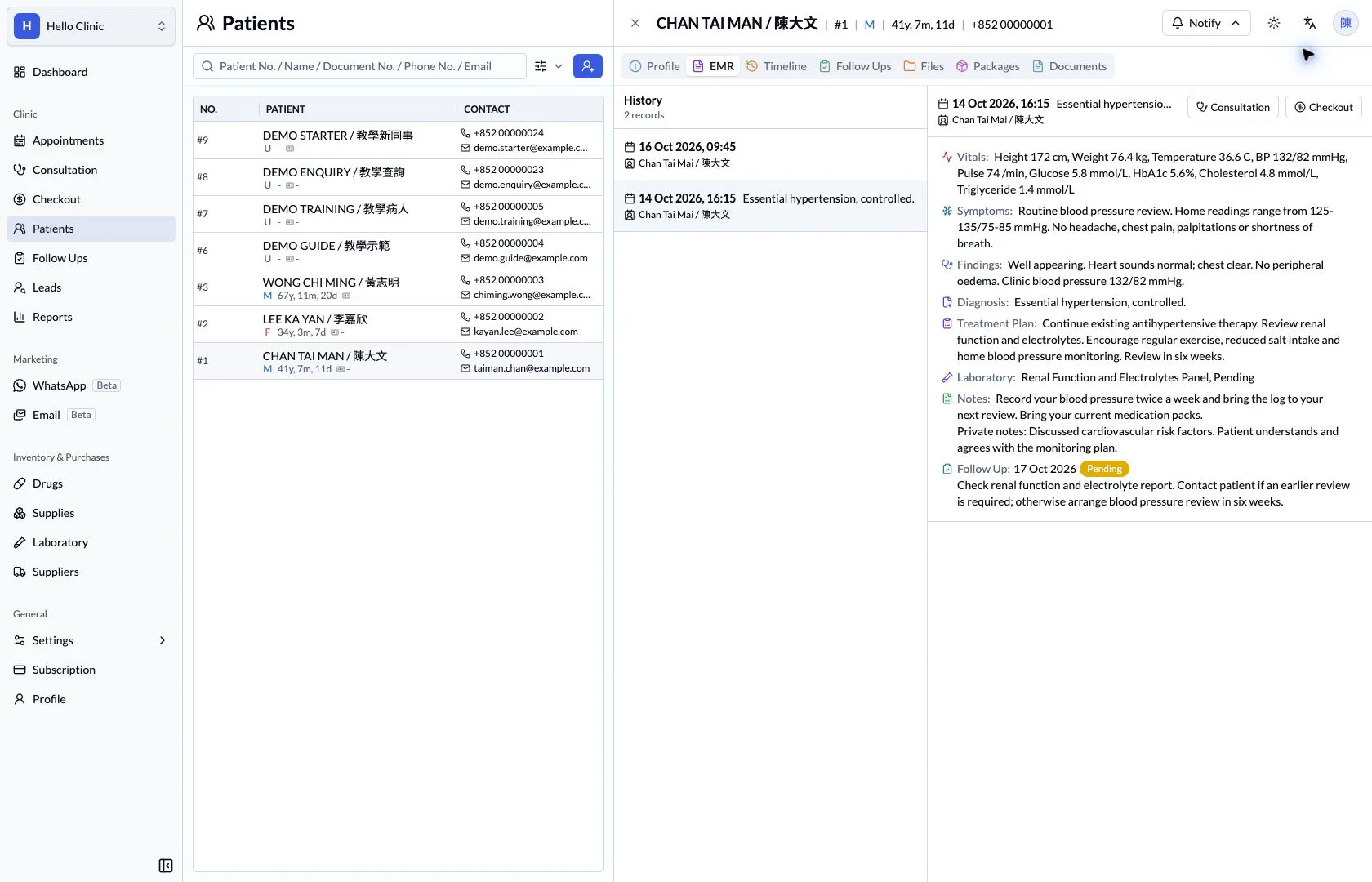
A file is more useful when the team can locate it in the relevant patient record. The Files tab keeps uploaded material beside EMR and timeline navigation.
How it fits the clinic day
Open the correct patient record.
Find the file by name or file type.
Review it alongside the clinical history.
Keep the next handover clear
Use clear names and purposes for stored files, and review patient-facing document content before issue. Record a separate follow-up whenever the material requires patient contact or clinical interpretation.