
Permissions Management
Match system access to the work each role does.
Review permissions by resource, action and available data scope for roles such as doctors and nurses.
System settings
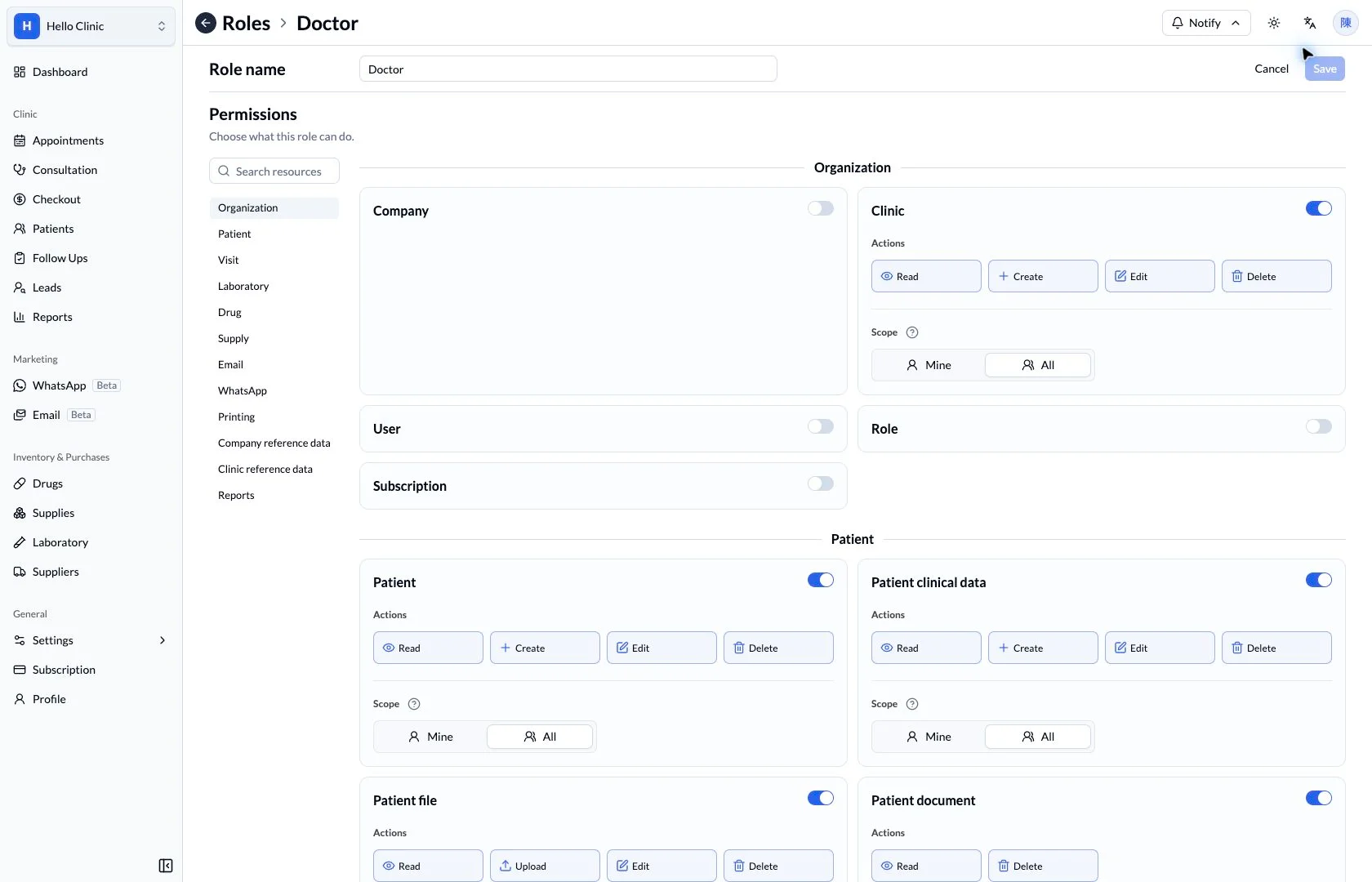
Match access to the clinic’s division of work
Reception, doctors and managers have different responsibilities and need different functions. Roles and permission settings let the clinic define those responsibilities, review the available actions and check which role is assigned to each user.
- Clinic manager
- Define responsibilities and available functions for each role.
- Authorised administrator
- Review users, clinic assignments and roles.
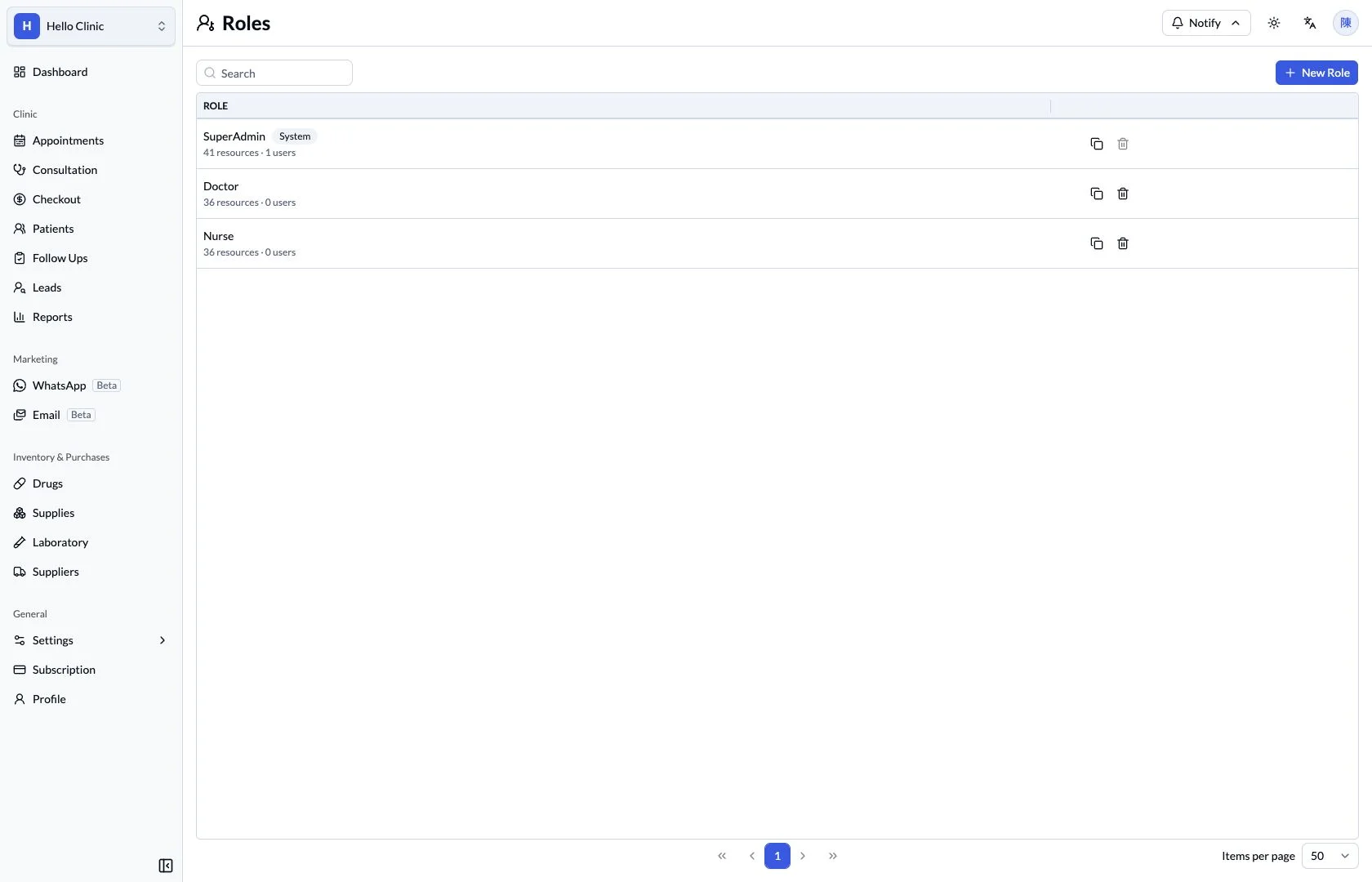
Start with the team’s role definitions
The role list provides entry points for different responsibilities. Managers can define reception, clinical and administrative duties first, then review each role rather than basing all access on one person’s working habits.
- Use role names that clearly describe responsibilities.
- Review existing roles before assessing changes.
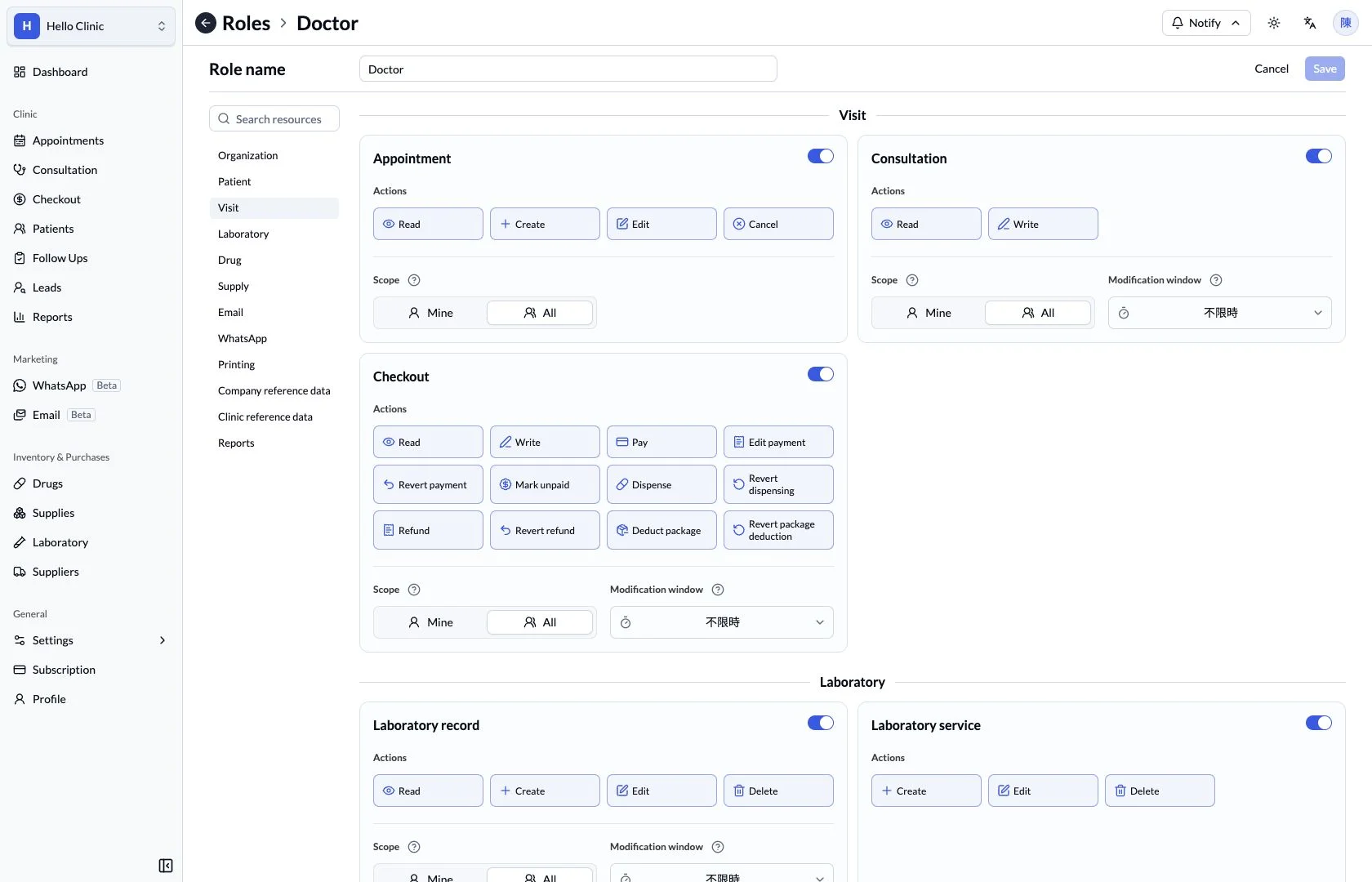
Review allowed actions within each work area
Role details organise permissions by work area, including consultation and checkout actions. Managers can review whether each action is needed for that role and align access with the clinic’s actual responsibilities.
- Understand each action before deciding its setting.
- Review clinical and checkout responsibilities explicitly.
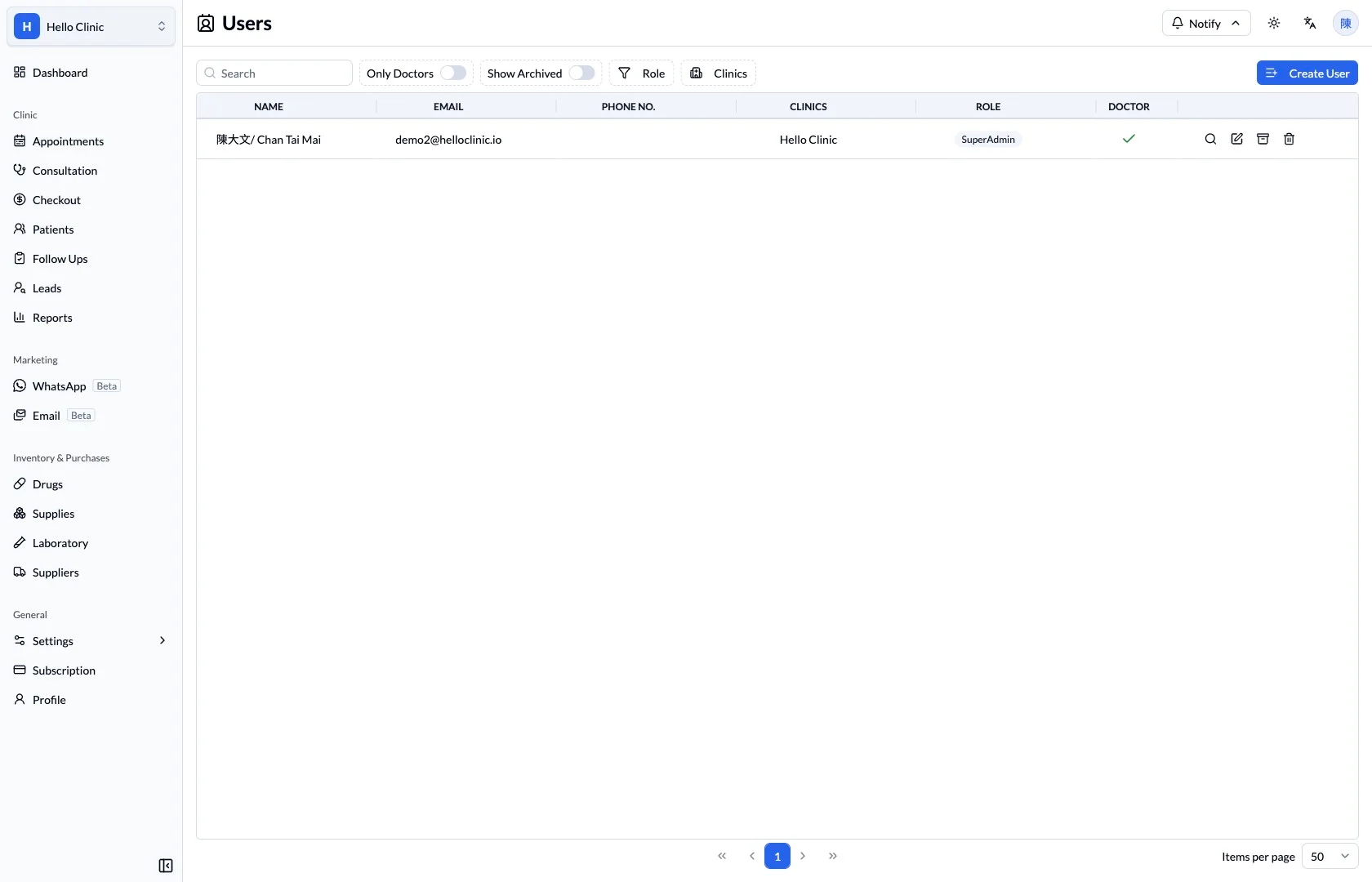
Check each user’s role and clinic assignment
The user list shows names, clinic assignments and roles together. An authorised colleague can review the current arrangement at handover or during staff changes before carrying out any required account administration.
- Match each account to the correct team member.
- Check clinic and role against current duties.
A deliberate review
Define the role’s responsibilities.
Review resources, actions and scope.
Check the intended access before saving changes.
What this helps you do
- Resource
- Choose which areas of the system the role can access.
- Action
- Distinguish read, create, edit and other resource-specific operations.
- Scope
- Review personal or all-record scope and available modification windows.
Access deserves a deliberate review.
Different roles need different information and operations. Review both the action and its scope when deciding what a team member should be able to do.
Keep the next handover clear
Access should follow actual responsibilities. At onboarding, role changes or departure, an authorised colleague reviews the user and role assignment, checking the required functions before making changes.